Data Browser and Editor
Ditto's Data Browser and DQL Editor are graphical interfaces you can use to monitor, write, validate, and interact with your queries in a streamlined way.
Accessing the Query Tools
To access the Data Browser and DQL Editor, log in to the portal > select your app > click Collections > and then click either DQL editor or Data browser located on the right.
Interface Overview
The following illustration and corresponding table provide a basic overview of the Data Browser (top) and DQL Editor (bottom):
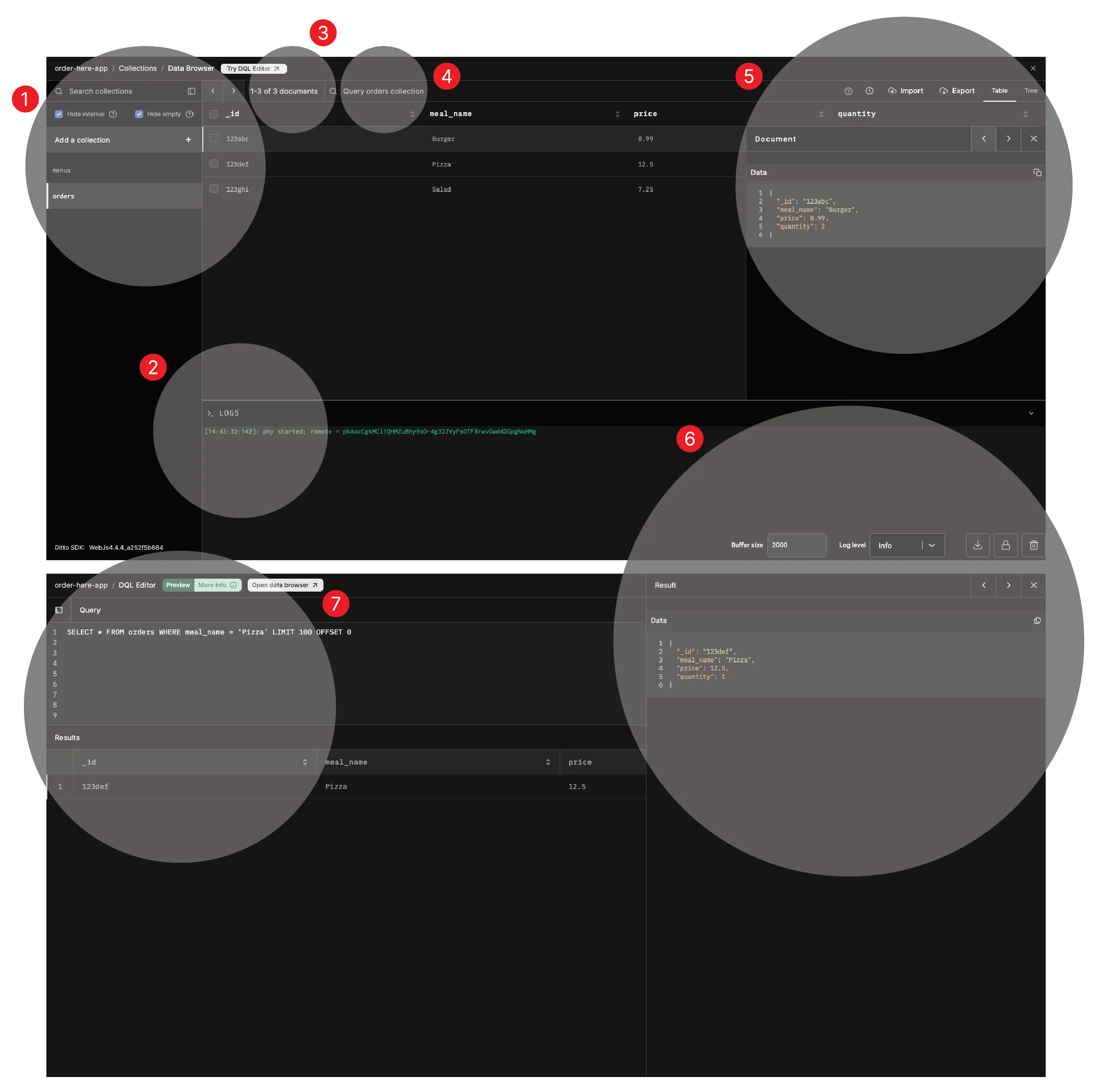
Item | Description |
|---|---|
1 | Create, manage, and search collections, as well as view details and logs for the authentication service, the Big Peer, and, if enabled in your app, for each Small Peer device. (See Using the Device Dashboard) |
2 | Expand and view the log data collected for your app. Once expanded, you can filter, download, lock, and delete logs. |
3 | Navigate to a specific document by entering a target document to jump to. |
4 | Search queries by keyword. |
5 | Recall previously executed queries, import one or more documents as JSON or CSV files; export all the data in the current collection, only result data, or specific data based on your selection; and switch between table and tree view. |
6 | Filter, download, lock, and delete log data. |
7 | Write queries in DQL, check syntax and semantics, autoformat, view query results, get immediate error feedback, and more. |
8 | Expand and view query results in JSON, move between different results, and copy the results that display. |