React Native
This article provides instructions on how to add the Ditto package to your project, import and initialize Ditto, and prepare React Native apps targeting iOS and Android for usage with the Ditto SDK:
React Native CLI Support
The Ditto SDK is designed for apps built with bare React Native CLI.
Apps created with Expo-specific configurations may not be fully compatible.
Integrating Ditto
Once you've confirmed that you have the necessary prerequisites, integrate Ditto within your React Native app:
Set up a React Native CLI project. (Creating Your Project)
Install the Ditto package into your project. (Installing the Ditto SDK)
Install the project dependencies. (Installing Dependencies)
Enable your app to sync with nearby devices. (Setting Up Transport Configurations)
Import the previously installed Ditto SDK package in your app. (Initializing Ditto)
Set up permissions handling. (Handling Permissions)
Set up authentication. (Setting Up Authentication)
Specify how Ditto should handle sync. (Creating a New Instance of Ditto)
Set up transport configurations. (Setting Transport Configurations)
Initiate sync at global scope. (Starting the Sync Process)
If desired, enable the Small Peer Information feature. (Enabling smallPeerInfo)
If desired, monitor the activity of remote peers in the mesh by logging relevant information in logs or using Ditto’s Presence Viewer app. (Setting Up Presence)
If desired, set the log level to debug. (Setting the Logs to Debug Level)
Create your subscription logic. (Constructing Subscription Logic)
Creating Your Project
First, set up your environment and initialize your React Native CLI project. For instructions, see the official Setting up the development environment documentation from React Native.
Before you begin the React Native setup procedure, make sure to select the steps for React Native CLI Quickstart. The Ditto SDK is designed for apps built with bare React Native CLI and may not be fully compatible with React Native apps built with Expo Go.
To verify that you’ve set up your environment correctly, install and run the React Native CLI doctor. For more information, see the official Meet Doctor, a new React Native command React Native blog post.
Installing the Ditto SDK
From a terminal, navigate to the folder containing your React Native project, and then, using yarn, run the Ditto package:
yarn add @dittolive/dittoWhile npm can also be used, yarn is the preferred package manager for React Native projects.
Installing Dependencies
From the root of your project, using either Yarn or npm, install project dependencies based on the package.json file:
yarn installConfiguring Permissions
Once you've added dependencies, set up transports for the iOS and Android targets.
iOS
From Xcode, enable Bluetooth LE and local network services in your app:
From your project's Info.plist file, add the following key-value pairs:
Tip: To view Info.plist as source code, right-click the file from the left sidebar in Xcode > click Open As > and then select Source Code from the menu.
- Once implemented, the following string values display to your end users as dismissable prompts explaining why the app requires certain permissions.
- If your end users prefer a language other than English, replace the string values with their language equivalents.
<?xml version="1.0" encoding="UTF-8"?>
<!DOCTYPE plist PUBLIC "-//Apple//DTD PLIST 1.0//EN" "http://www.apple.com/DTDs/PropertyList-1.0.dtd">
<plist version="1.0">
<dict>
  <key>NSBluetoothAlwaysUsageDescription</key>
  <string>Uses Bluetooth to connect and sync with nearby devices.</string>
  <key>NSLocalNetworkUsageDescription</key>
  <string>Uses WiFi to connect and sync with nearby devices.</string>
  <key>NSBonjourServices</key>
  <array>
  <string>_http-alt._tcp.</string>
  </array>
  <!-- Your other keys -->
</dict>
</plist>
If deisred, customize the default values for the permission prompts by replacing them with your preferred text.
For example, if your end users prefer a language other than English, you can replace the default English strings with their language equivalents.
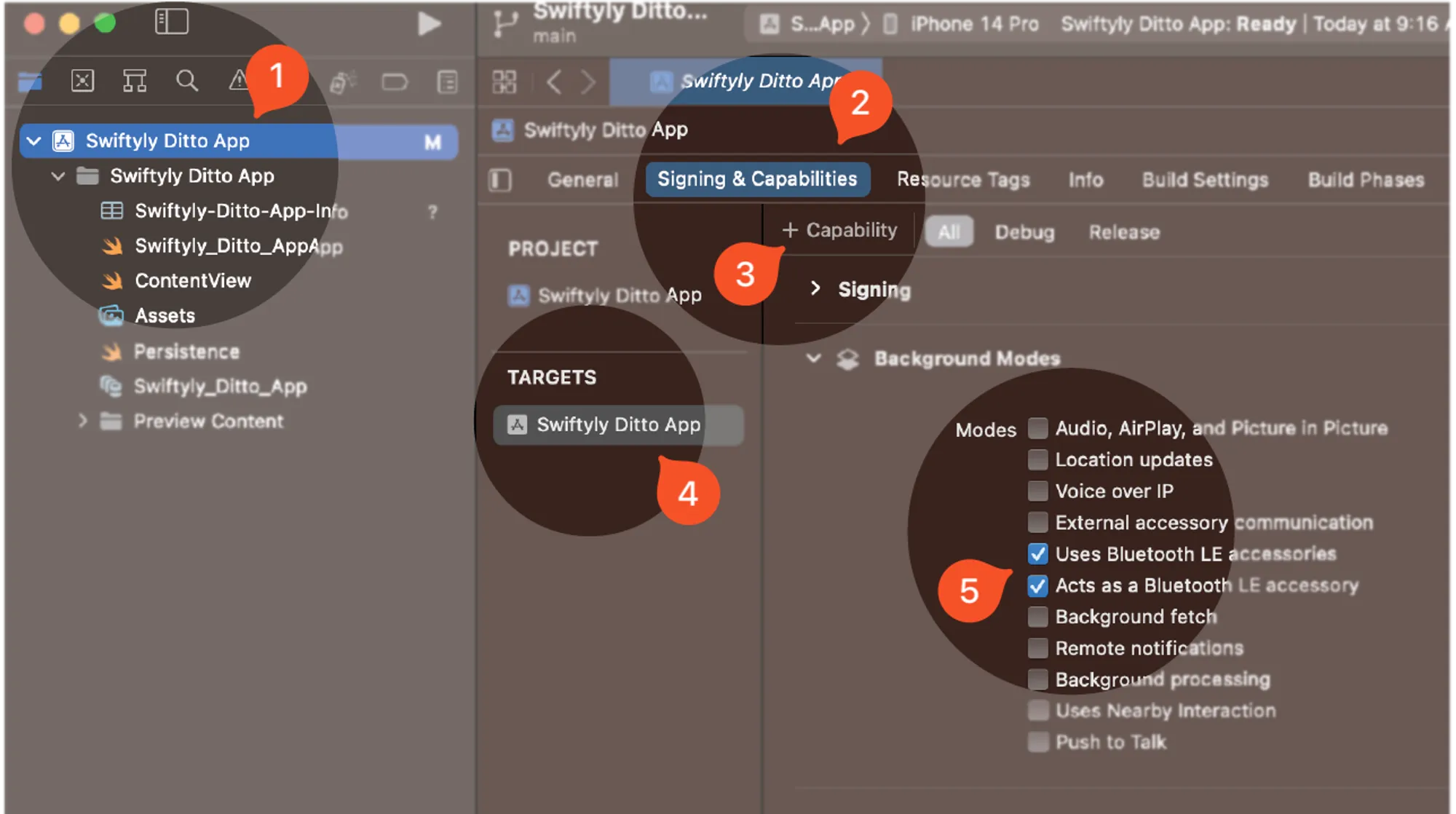
Ensure your app continues to sync while it runs in the background by enabling Bluetooth LE background modes. Once enabled, your app continuously syncs in the background, even while the device is locked.
For official instructions, see Configuring background execution modes from Apple.
- From the left sidebar, click to select your project.
- Click Signing & Capabilities.
- Click + Capability and then, from the modal that appears, search and select Background Modes.
- From TARGETS, select your app from the list.
- From Background Modes, toggle the following:
- Uses Bluetooth LE accessories
- Acts as a Bluetooth LE accessory
Android
From Android Studio, set up transport configurations for the Android target:
Update Android's minimum SDK version to 24 or higher:
- Open the project-level build.gradle located in the android root directory.
- Set the minSDKVersion to 24.
For newer projects, set the SDK version in android/gradle.properties.
Add the Ditto SDK as a dependency:
- Open the module-level build.gradle located in the android/app directory.
- Add the following line into the dependencies block located at the bottom of the file:
implementation group: 'live.ditto', name: 'ditto', version: '4.7.1'Start the app in Metro:
yarn start!If you receive the error message: Execution failed for task... when starting the app in Metro, add the following block to the module-level build.gradle located in the android/app directory:
If you encounter an issue, see Troubleshooting JSI Bindings Error.
android {
    packagingOptions {
        pickFirst 'lib/x86/libjsi.so'
        pickFirst 'lib/x86_64/libjsi.so'
        pickFirst 'lib/armeabi-v7a/libjsi.so'
        pickFirst 'lib/arm64-v8a/libjsi.so'
    }
    // Rest of the file
}
Initializing Ditto
Within the top-most scope of your app, import the ditto package with the necessary modules and components from the Ditto SDK’s react-native library:
import { Ditto } from '@dittolive/ditto';Handling Permissions
Within your default React component (App), use this helper function to request permissions if developing for the Android target:
import {useEffect} from 'react';

export default function App() {

  async function requestPermissions() {
    const granted = await PermissionsAndroid.requestMultiple([
      PermissionsAndroid.PERMISSIONS.BLUETOOTH_CONNECT,
      PermissionsAndroid.PERMISSIONS.BLUETOOTH_ADVERTISE,
      PermissionsAndroid.PERMISSIONS.NEARBY_WIFI_DEVICES,
      PermissionsAndroid.PERMISSIONS.BLUETOOTH_SCAN,
    ]);

    Object.entries(granted).forEach(([permission, result]) => {
      if (result === PermissionsAndroid.RESULTS.GRANTED) {
        console.log(`${permission} granted`);
      } else {
        console.log(`${permission} denied`);
      }
    });
  }

  useEffect(() => {
    requestPermissions();
  }, []);

}
Configuring Sync
Using an asynchronous function named startSync(), do the following:
Define an identity configuration with authentication settings. (Setting Up Authentication)
Instantiate a ditto object with the specified identity. (Creating a New Ditto Instance)
Configure peer-to-peer transport settings and enable transports. (Setting Transport Configurations)
Initiate sync. (Starting the Sync Process)
Setting Up Authentication
Create an identity object, define your authentication type, and then provide access credentials. Each instance of Ditto running in your app must prove its identity to other peers to sync.
There are two types of identities you can use to authenticate:
- onlinePlayground — Explore platform features and functionality without needing to set up your authentication mechanism.
- onlineWithAuthentication — If developing a production-level app, integrate your own identity provider, such as Auth0, identify users, give users read or write control, and integrate with your existing authentication systems.
For more information, see Authentication.
onlinePlayground
Use an online playground identity for development. You can find authentication details for your app in the Ditto Portal. Use these to set up your identity:
import type { Identity } from '@dittolive/ditto';

const identity: Identity = {
  type: 'onlinePlayground',
  appID: '<your-app-id>',
  token: '<your-online-playground-token>',
};
onlineWithAuthentication
Use the online with authentication identity when developing a production app for deployment.
import type { Identity } from '@dittolive/ditto';

const identity: Identity = {
  type: 'onlineWithAuthentication',
  appID: '<your-app-id>',
  authHandler: {
    authenticationRequired(authenticator: Authenticator) {
      if (authenticator.loginSupported) {
        authenticator.loginWithToken(
          'will-accept-any-password',
          'auth-webhook'
        );
        console.log('Successfully logged in');
      }
    },
    authenticationExpiringSoon: function (
      authenticator: Authenticator
    ): void {
      authenticator.loginWithToken('will-accept-any-password', 'auth-webhook');
      console.log('Successfully relogged');
    },
  },
  enableDittoCloudSync: true, // Enable to connect to Ditto's cloud, defaults to true.
};
Creating a New Instance of Ditto
Within a try statement, instantiate a new ditto object with the identity you’ve specified:
import { Ditto, DittoError } from '@dittolive/ditto';

let ditto: Ditto;
try {
  ditto = new Ditto(identity);
} catch (error: any) {
  if (error instanceof DittoError) {
    // handle errors starting Ditto
  }
  throw error
}
Setting Transport Configurations
Using a TransportConfig instance, do the following to set up transport configurations in your app:
Configure peer-to-peer transport settings so that all desired transport types available on the end-user device are available to Ditto.
Specify how you want Ditto to handle which transports to use to sync data across the mesh.
import { TransportConfig } from '@dittolive/ditto';

const transportsConfig = new TransportConfig();
transportsConfig.peerToPeer.bluetoothLE.isEnabled = true;
transportsConfig.peerToPeer.lan.isEnabled = true;
transportsConfig.peerToPeer.lan.isMdnsEnabled = true;

// Apple Wireless Direct Link is only available on Apple devices
if (Platform.OS === 'ios') {
  transportsConfig.peerToPeer.awdl.isEnabled = true;
}

ditto.setTransportConfig(transportsConfig);
Constructing Sync Subscription Logic
Create the logic that performs sync and data operations in your app, including registering subscriptions, executing store operations, and observing changes in the given collection. For more information, see Data-Handling Essentials and Managing Sync Subscriptions.
For example, the following snippet defines a document object (document), creates a subscription for the Cars collection, executes database operations and logs the results, registers an observer for watching changes in the Cars collection, and, when changes are observed, updates the setDocuments and setLoading state:
import type {
  DocumentID,
  QueryResult,
  QueryResultItem,
} from "@dittolive/ditto";

const document = {
  id: 987654,
  _id: 123131,
  model: "CX-5",
  make: "Mazda",
  color: "blue",
};

ditto.sync.registerSubscription(`SELECT * FROM cars`);
async function runExecute() {
  const queryResult = await ditto.store.execute(
    "INSERT INTO Cars DOCUMENTS (:document) ON ID CONFLICT DO UPDATE",
    { document }
  );
  console.log(queryResult.items.map((item: QueryResultItem) => item.value));
  console.log(
    "mutated",
    queryResult.mutatedDocumentIDs().map((docId: DocumentID) => docId.value)
  );
}
runExecute();

ditto.store.registerObserver(`SELECT * FROM cars`, (response: QueryResult) => {
  const parsedDocuments = response.items.map((doc: QueryResultItem) => {
    return doc.value;
  });
  setDocuments(parsedDocuments);
  setLoading(false);
});
Starting the Sync Process
To start syncing with other peers in the mesh:
ditto.startSync();Enabling smallPeerInfo Feature
If desired, gather and store peer-to-peer sync and network details automatically rather than needing to continuously query Ditto for this data by enabling the smallPeerInfo feature.
Once enabled, collected details are available within the Ditto portal. For more information, see Capturing Small Peer Information.
To enable smallPeerInfo collection:
ditto.smallPeerInfo.isEnabled;
ditto.smallPeerInfo.isEnabled = true;
await ditto.smallPeerInfo.getSyncScope();
await ditto.smallPeerInfo.setSyncScope('BigPeerOnly');
ditto.smallPeerInfo.metadata = { test: 'metadata' };
ditto.smallPeerInfo.metadata;
ditto.smallPeerInfo.metadataJSONString;
Setting Up Presence
Monitor remote peers in the logs or using Ditto’s Presence Viewer app. For more information, see the blog post “An explanation of the Ditto Presence Viewer.”
To set up presence observations:
// This closure is called every time the mesh of
// connected Ditto peers changes:
ditto.presence.observe((graph) => {
  console.log('Peers: ', graph.remotePeers);
});
Setting Logs to Debug Level
Capture database debug logs by setting the Ditto log level to Debug mode that way any potential issues are tracked.
To set the minimum log level to debug:
Logger.minimumLogLevel = 'Debug';Troubleshooting JSI Bindings Error
When using the Ditto SDK for React Native in the iOS simulator, you may encounter issues related to the JSI bindings not being installed for the DittoRNSDK module when using the Hermes JavaScript engine.
To resolve the issue, modify your project settings and dependencies:
From the ios/Podfile file in your project, set the minimum deployment target for iOS:
platform :ios, 14From the ios/ directory in your project, update CocoaPods dependencies:
pod installIf you encounter a filesystem permissions error after updating CocoaPods dependencies:
- From Xcode, disable the macOS App sandbox. For instructions, see the official Configuring the macOS App Sandbox from Apple.
- Using the sudo command, run your project with elevated privileges.