SwiftUI: ToDo App Quickstart
This quickstart provides step-by-step instructions for using SwiftUI to create a task app in Xcode, which consists of the following high-level steps:
Prequisites
- Ditto account and access credentials
- iOS 13 (or later)
- macOS 11 (or later)
For instructions on creating your account and obtaining your credentials, see Onboarding.
Creating a New App in Xcode
Click File, and then select New Project.
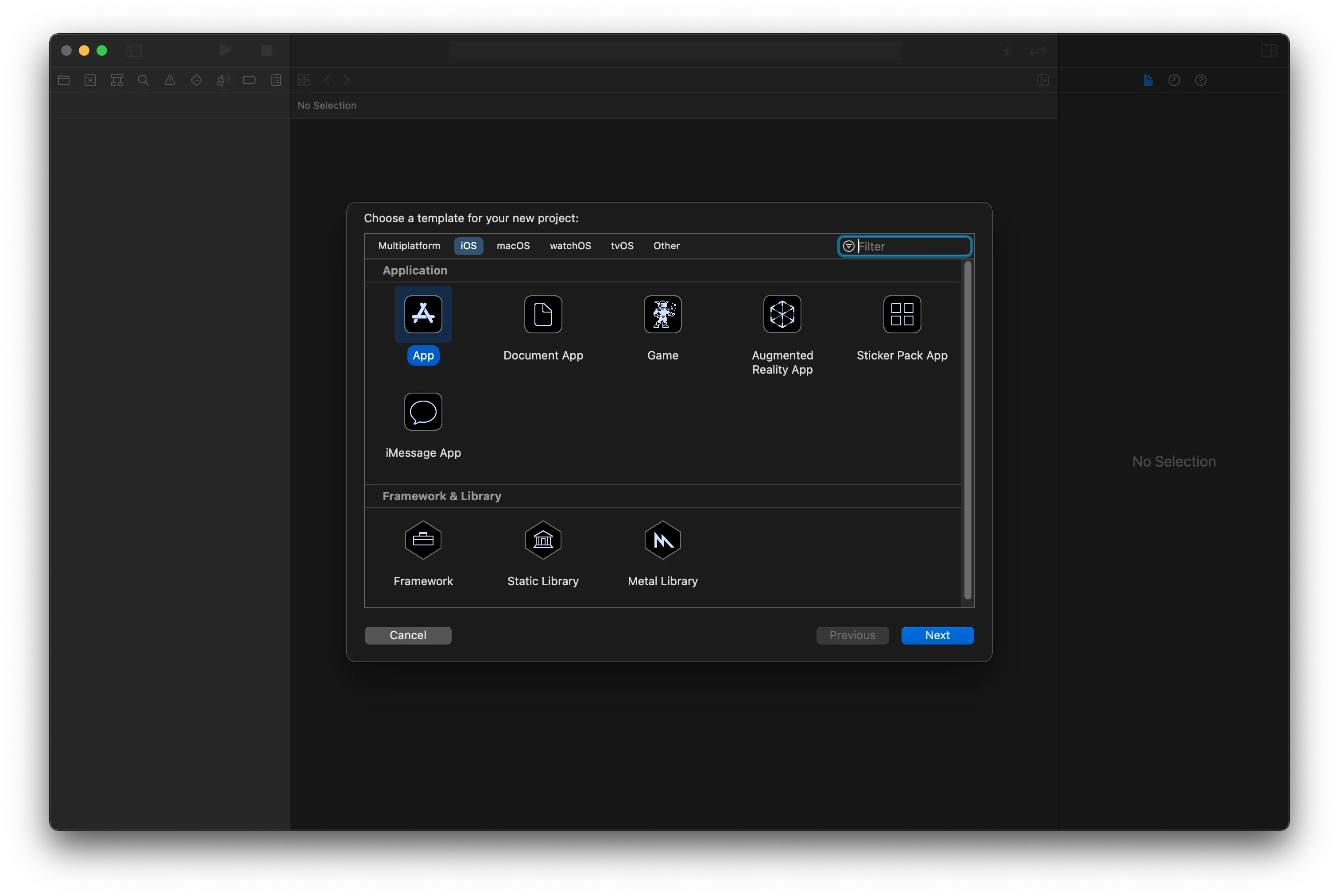
In the Choose a template for your new project modal, select App and then click Next.
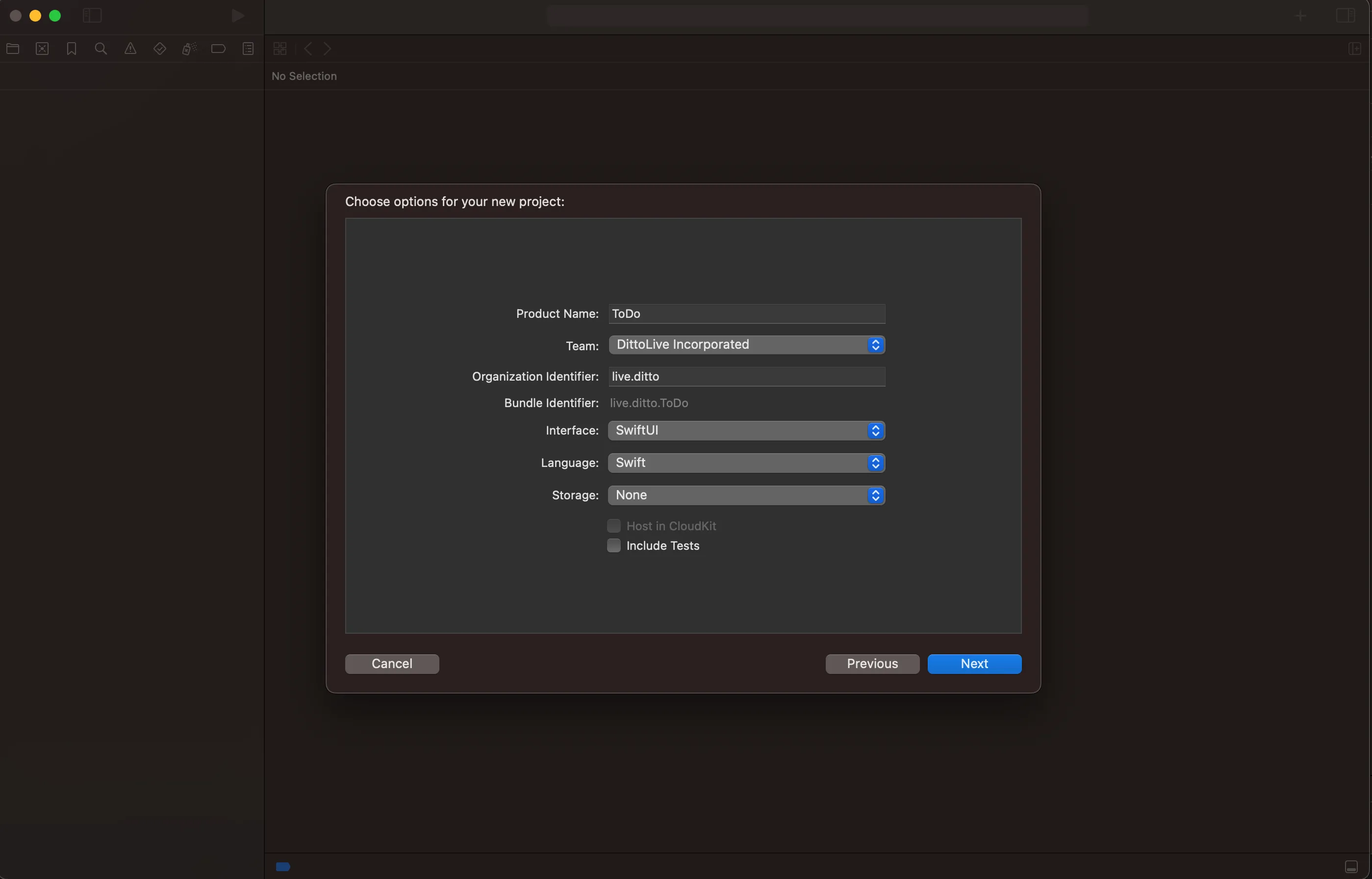
In the Choose options for your new project modal, enter the following information as appropriate and then click Next.
The following are merely suggestions; enter any information in the form that you desire.
The following steps provide suggested values for the form; however you can enter any information you desire:
- For Product Name, type "ToDo".
- For Team, select from Apple developer account teams.
- For Organization Identifier, enter your org identifier, typically reverse domain, e.g. "live.ditto".
- For Interface, select SwiftUI.
- For Life Cycle, select Swift UI App.
- For Language, select Swift.
Configuring Ditto
Add Ditto SDK package
- Click on the ToDo project at the top level of the Project Navigator to display the project configuration UI.
- Select the ToDo project in the projects and targets list in the editor.
- Then select the Package Dependencies tab.
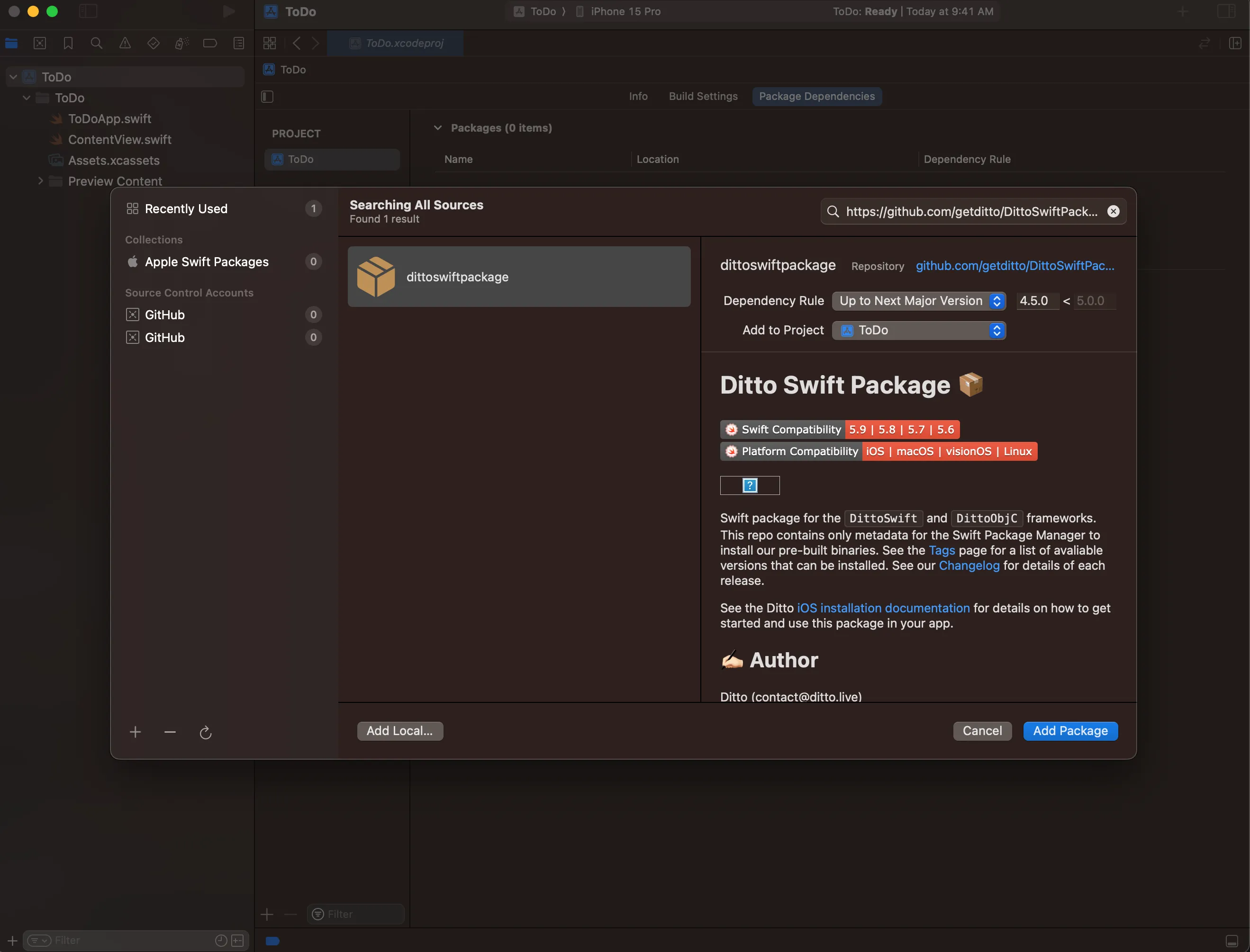
- Click Add Package Dependency (plus button) at the bottom of the Packages list.
- In the Add Package modal window, in the search bar, enter the DittoSwiftPackage URL: github.com/getditto/DittoSwiftPackage.
- In the Dependency Rule field, select "Up to Next Major" from the dropdown menu, and type in "4.5.0" in the version field.
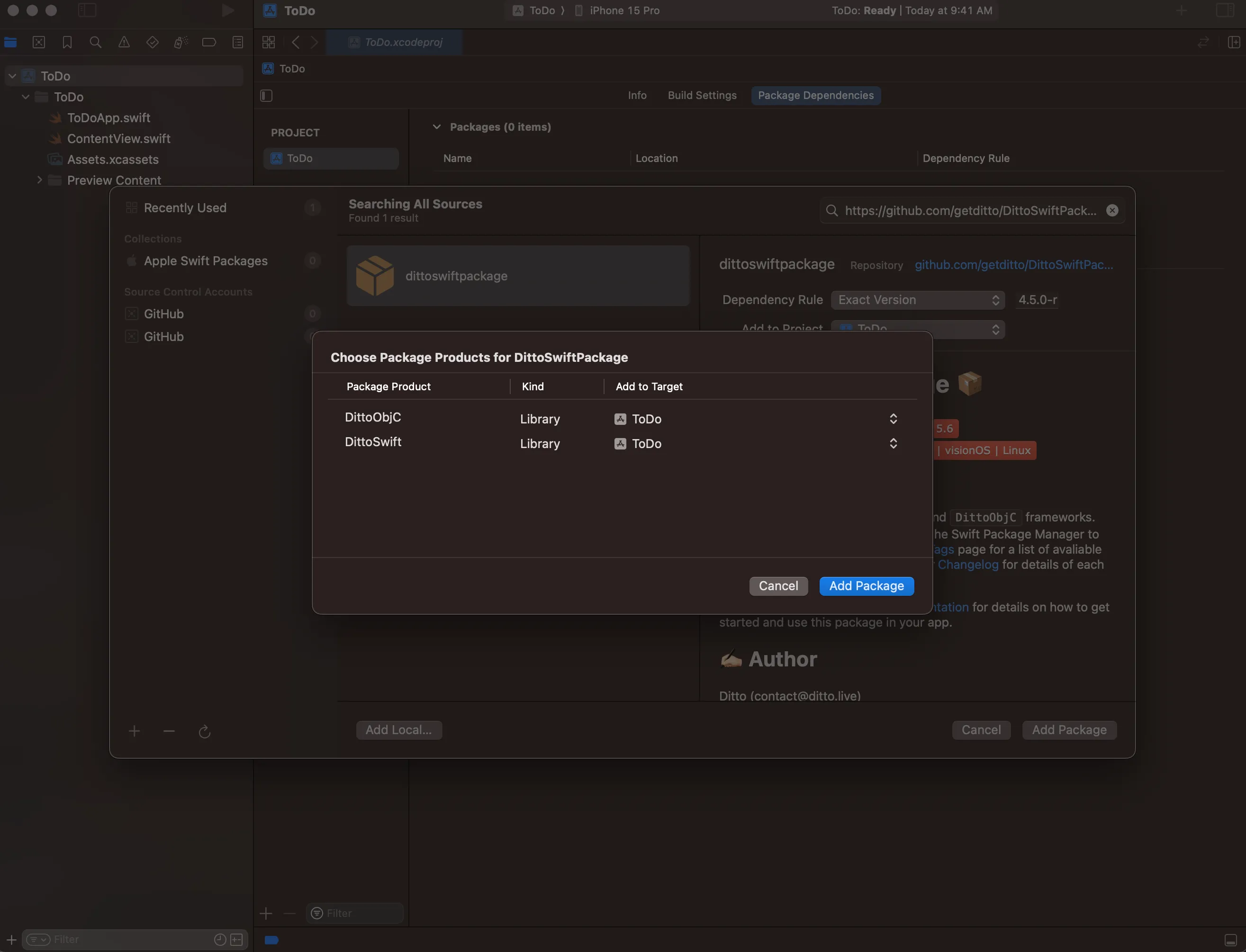
- Add both DittoObjC and DittoSwift libraries
Create DittoManager
- From File menu > New > File, select Swift File template, then click Next button.
- Name the new file DittoManager.swift.
- Import DittoSwift.
- Initialize the dittovariable instance with an online playground identity using the APP ID of the app that you have created on the portal. We are using an .onlinePlayground setup, which should suffice for this tutorial. However, you should never deploy an app with this configuration to a production environment like the Apple App Store.
- We will implement DittoManager as a singleton for the convenience of its availability throughout the app.
import DittoSwift
import Foundation

class DittoManager {
    var ditto: Ditto
    static var shared = DittoManager()

    init() {
        ditto = Ditto(
            identity: .onlinePlayground(
                appID: DITTO_APP_ID,
                token: DITTO_PLAYGROUND_TOKEN
            )
        )
    }
}
ToDo tasks
Create a ToDo Struct
Ditto is a document database, which represents all its rows in the database as JSON-like structures with key/value properties. In this tutorial, we will define each ToDotask like so::
{
  "_id": "123abc",
  "body": "Get Milk",
  "isCompleted": true
  "isDeleted": false
}
Ditto documents have a flexible structure, like JSON, and in Swift, DQL queries return a DittoQueryResult, which has an items array property containing a DittoQueryResultItemfor each match. We can access the key/value pairs of those items with the item.valueproperty.
It is a common practice to create a data model structure to more conveniently work with the app's business logic and to leverage Swift's type safety. Let's do that now. Create a new Swift file called ToDo.swift in your project.
- Add import DittoSwift to the top of the file.
- Create a ToDo struct and add the matching properties let _id: String, let body: String, and let isCompleted: Bool to the struct.
- The type of DittoQueryResultItem.value is [String: Any?], which contains the matching key/value pairs we will use to initialize the struct. Add the init(value: [String: Any?]) constructor which will take an argument of the result item .value type .
- Add an extension to the struct declaring conformance with the Identifiableprotocol, and implement var id: String to return the _id key string. The Identifiable protocol is required to uniquely identify ToDo instances in the ForEach component in SwiftUI's List view. It may seem confusing to implement both _id and id in the same struct. To clarify, _id is a property of the underlying DittoDocumentuniquely identifying it in the Ditto database, and the struct's id property uniquely identifies the struct instance for the SwiftUI view.
// 1.
import DittoSwift

// 2.
struct ToDo: Codable {
    let _id: String
    let body: String
    var isCompleted: Bool
    var isDeleted: Bool

    // 3.
    init(value: [String: Any?]) {
        _id = value["_id"] as! String
        body = value["body"] as! String
        isCompleted = value["isCompleted"] as? Bool ?? false
        isDeleted = value["isDeleted"] as? Bool ?? false
    }
}

// 4.
extension ToDo: Identifiable {
    var id: String {
        return _id
    }
}
Later in the tutorial we will see how to register a Ditto store observer that will return the result of a query whenever there is a change in the database documents matching the query.
Create a TasksListScreen view
When we generated the project, Xcode created a default ContentView which we will delete, and then create the TasksListScreen to replace it, which will show the list of the views.
- Create a new SwiftUI View View by clicking File > New > SwiftUI View named "TasksListScreen", and import DittoSwift at the top of the file.
- Create a ditto property of type Ditto.
- In the body block, add a NavigationView with a List child view. We will fill out the contents of the List in the next section.
- Add a .navigationTitle modifier on the end of the List to display a title on the navigation bar.
- Then add a trailing navigation "plus" button in a .navigationBarItems modifier. We will implement the button action later.
- And finally, stub in a .sheet modifier that we will use to present an EditScreen, which we will create later.
import SwiftUI
// 1.
import DittoSwift

struct TasksListScreen: View {
    // 2.
    let ditto: Ditto

    var body: some View {
        // 3.
        NavigationView {
            List {

            }
            // 4.
            .navigationTitle("Tasks - SwiftUI")
            // 5.
            .navigationBarItems(trailing: Button(action: {

            }, label: {
                Image(systemName: "plus")
            }))
            // 6.
            .sheet(isPresented: .constant(false), content: {

            })
        }
    }
}Delete ContentView.swift
- Right-click ContentView.swift in the Xcode Navigator pane.
- Select "Delete" from the menu.
- Click "Move to Trash" from the action sheet.
Set TaskListScreen as main view
- In ToDoApp.swift replace ContentView with the TaskListScreen in the WindowGroup.
import SwiftUI

@main
struct ToDoApp: App {
    var body: some Scene {
        WindowGroup {
            TasksListScreen()
        }
    }
}
In the last part of the tutorial we implemented the start of a TasksListScreen view to display a List of ToDo tasks.
Create a TaskRow view
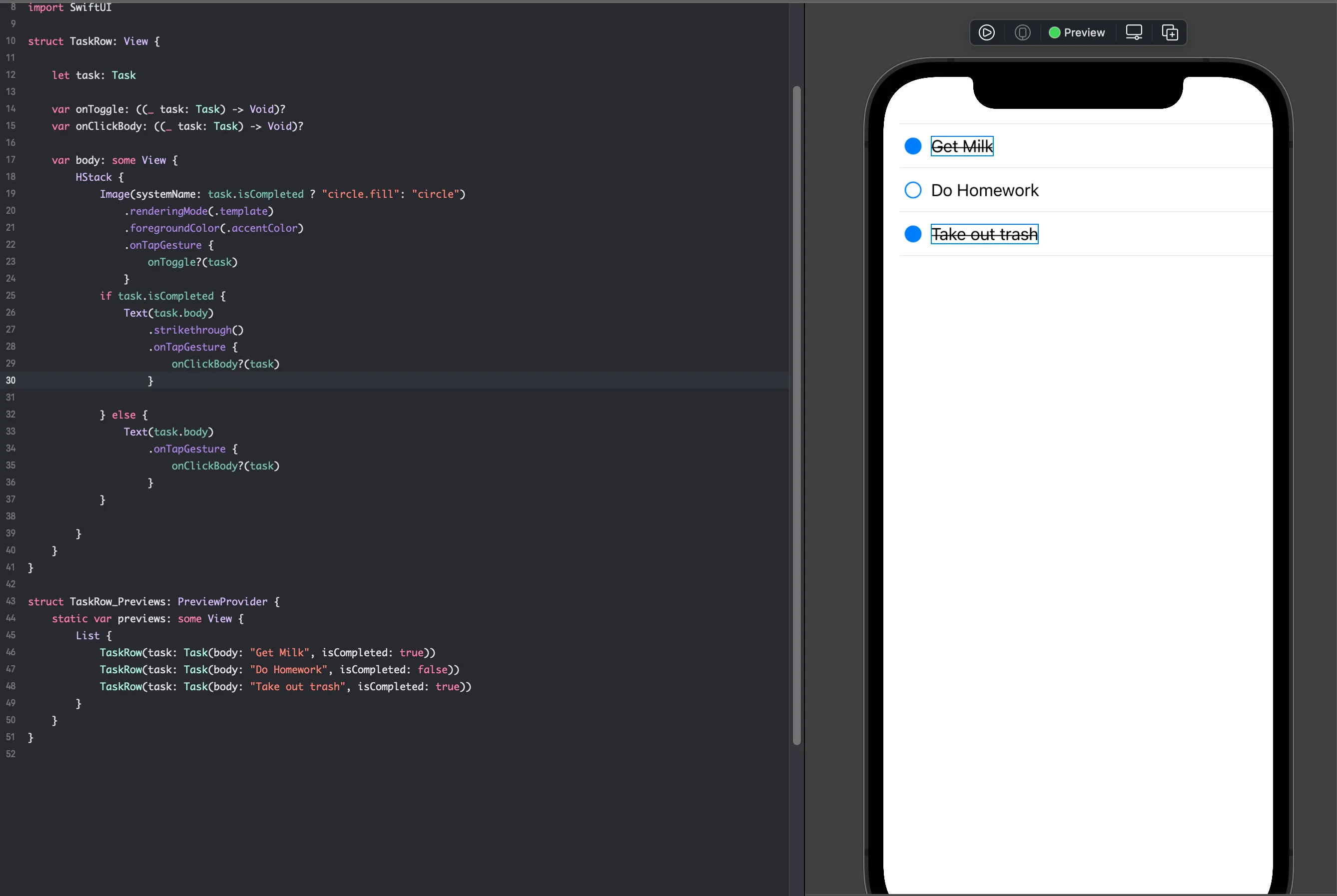
Each row of the tasks list will be represented by a SwiftUI View called ToDoRow which takes in a ToDo task instance and two action closures which we will use later.
- If task.isCompleted is true, we will show a filled circle icon and a strikethrough style for the body text.
- If task.isCompleted is false, we will show an open circle icon.
- When the user taps the circle icon, we will call the onToggle: ((_ task: Task) -> Void)?, we will reverse the isCompleted from true to false or false to true
- If the user taps the Text, we will call a onClickBody: ((_ task: Task) -> Void)?. We will use this to navigate an EditScreen (we will create this later)
For brevity, we will skip discussions on styling as it's best to see the code snippet below:
We've also included a TaskRow_Previews that allows you to see the end result with some test data quickly.
import SwiftUI

struct TaskRow: View {

    let task: Task

    var onToggle: ((_ task: Task) -> Void)?
    var onClickBody: ((_ task: Task) -> Void)?

    var body: some View {
        HStack {
            // 2.
            Image(systemName: task.isCompleted ? "circle.fill": "circle")
                .renderingMode(.template)
                .foregroundColor(.accentColor)
                .onTapGesture {
                    onToggle?(task)
                }
            if task.isCompleted {
                Text(task.body)
                    // 2.
                    .strikethrough()
                    .onTapGesture {
                        onClickBody?(task)
                    }

            } else {
                // 3.
                Text(task.body)
                    .onTapGesture {
                        onClickBody?(task)
                    }
            }

        }
    }
}

struct TaskRow_Previews: PreviewProvider {
    static var previews: some View {
        List {
            TaskRow(task: Task(body: "Get Milk", isCompleted: true))
            TaskRow(task: Task(body: "Do Homework", isCompleted: false))
            TaskRow(task: Task(body: "Take out trash", isCompleted: true))
        }
    }
}Create a TasksListScreenViewModel
In the world of SwiftUI, the most important design pattern is the MVVM, which stands for Model-View-ViewModel. MVVM strives to separate all data manipulation (Model and ViewModel) and data presentation (UI or View) into distinct areas of concern. When it comes to Ditto, we recommend that you never include references to edit ditto in View.body. All interactions with ditto for upsert, update, find, remove and observe should be within a ViewModel. The View should only render data from observable variables from the ViewModel and only the ViewModel should make direct edits to these variables.
Typically we create a ViewModel per screen or per page of an application. For the TasksListScreen we need some functionality like:
- Showing a realtime list of Task objects
- Triggering an intention to edit a Task
- Triggering an intention to create a Task
- Clicking an icon to toggle the icon from true to false or false to true
In SwiftUI we create a view model by inheriting the ObservableObject. The ObservableObject allows SwiftUI to watch changes to certain variables to trigger view updates intelligently. To learn more about ObservableObject we recommend this excellent tutorial from Hacking with Swift.
- Create a file called TasksListScreenViewModel.swift in your project
- Add an init constructor to pass in a ditto: Ditto instance and store it in a local variable.
- Create two @Published variables for tasks and isPresentingEditScreen. @Published variables are special variables of an ObservableObject. If these variables change, SwiftUI will update the view accordingly. Any variables that are not decorated with @Published can change but will be ignored by SwiftUI.
- We also add a normal variable, private(set) var taskToEdit: Task? = nil. When a user is attempting to edit a task, we need to tell the view model which task the user would like to edit. This does not need to trigger a view reload, so it's a simple variable.
- Here's where the magic happens. As soon as the TasksListScreenViewModel is initialized, we need to .observe all the tasks by creating a live query. To prevent the liveQuery from being prematurely deallocated, we store it as a variable. In the observe callback, we convert all the documents into Task objects and set it to the @Published tasks variable. Every time to .observe fires, SwiftUI will pick up the changes and tell the view to render the list of tasks.
- We will add an eviction call to the initializer that will remove any deleted documents from the collection
- Add a function called toggle(). When a user clicks on a task's image icon, we need to trigger reversing the isCompleted state. In the function body we add a standard call to find the task by its _id and attempt to mutate the isCompleted property.
- Add a function called clickedBody. When the user taps the TaskRow's Text field, we need to store that task and change the isPresentingEditScreen to true. This will give us enough information to present a .sheet in the TasksListScreenViewModel to feed to the EditScreen
- In the previous setup of the TasksListScreen, we added a navigationBarItem with a plus icon. When the user clicks this button we need to tell the view model that it should show the EditScreen. So we've set the isPresentingEditScreen property to true. However, because we are attempting to create a Task, we need to set the taskToEdit to nil because we don't yet have a task.
class TasksListScreenViewModel: ObservableObject {

    // 3.
    // highlight-start
    @Published var tasks = [Task]()
    @Published var isPresentingEditScreen: Bool = false
    // highlight-end

    // 4.
    // highlight-next-line
    private(set) var taskToEdit: Task? = nil

    let ditto: Ditto
    // 5.
    // highlight-start
    var liveQuery: DittoLiveQuery?
    var subscription: DittoSubscription?

    init(ditto: Ditto) {
        self.ditto = ditto
        self.subscription = ditto.store["tasks"].find("!isDeleted").subscribe()
        self.liveQuery = ditto.store["tasks"]
            .find("!isDeleted")
            .observeLocal(eventHandler: {  docs, _ in
                self.tasks = docs.map({ Task(document: $0) })
            })

        //6.
        ditto.store["tasks"].find("isDeleted == true").evict()
    }
    // highlight-end

    // 7.
    // highlight-start
    func toggle(task: Task) {
        self.ditto.store["tasks"].findByID(task._id)
            .update { mutableDoc in
                guard let mutableDoc = mutableDoc else { return }
                mutableDoc["isCompleted"].set(!mutableDoc["isCompleted"].boolValue)
            }
    }
    // highlight-end

    // 8.
    // highlight-start
    func clickedBody(task: Task) {
        taskToEdit = task
        isPresentingEditScreen = true
    }
    // highlight-end

    // 9.
    // highlight-start
    func clickedPlus() {
        taskToEdit = nil
        isPresentingEditScreen = true
    }
    // highlight-end
}Render TaskRow in a ForEach within the TasksListScreen
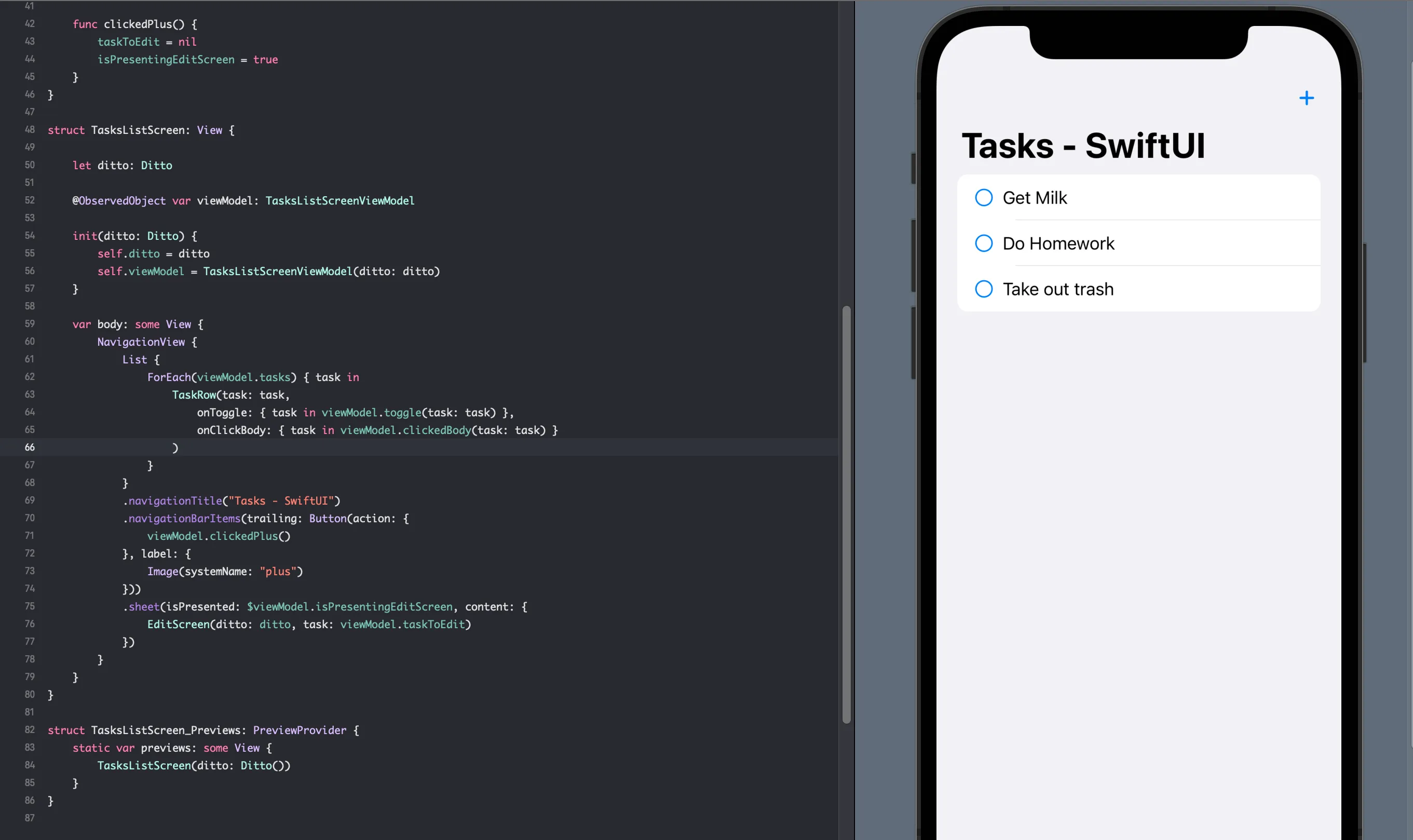
Now we need to update our TasksListScreen to properly bind any callbacks, events, and data to the TasksListScreenViewModel.
- Back in the TasksListScreen view, we need to construct our TasksListScreenViewModel and store it as an @ObservedObject. This @ObservedObject tells the view to watch for specific changes in the viewModel variable.
- We will need to store our ditto object to pass to the EditScreen later.
- In our body variable, find the List and add:
ForEach(viewModel.tasks) { task in
    TaskRow(task: task,
        onToggle: { task in viewModel.toggle(task: task) },
        onClickBody: { task in viewModel.clickedBody(task: task) }
    )
}
This will tell the list to iterate over all the viewModel.tasks and render a TaskRow. In each of the TaskRow children, we need to bind the onToggle and onClick callbacks to the viewModel methods.
- Bind the plus button to the viewModel.clickedPlus event
- Now we need to present a .sheet which will activate based on the $viewModel.isPresentingEditScreen variable. Notice how we added the $ before viewModel. .sheet can edit the isPresentingEditScreen once it's dismissed, so we need to treat the variable as a bidirectional binding.
- We've also included a TasksListScreen_Previews so that you can add some test data and see the result in a live view.
struct TasksListScreen: View {

    // 2.
    // highlight-next-line
    let ditto: Ditto

    // 1.
    // highlight-start
    @ObservedObject var viewModel: TasksListScreenViewModel

    init(ditto: Ditto) {
        self.ditto = ditto
        self.viewModel = TasksListScreenViewModel(ditto: ditto)
    }
    // highlight-end

    var body: some View {
        NavigationView {
            List {
                // 3.
                // highlight-start
                ForEach(viewModel.tasks) { task in
                    TaskRow(task: task,
                        onToggle: { task in viewModel.toggle(task: task) },
                        onClickBody: { task in viewModel.clickedBody(task: task) }
                    )
                }
                // highlight-end
            }
            .navigationTitle("Tasks - SwiftUI")
            .navigationBarItems(trailing: Button(action: {
                // 4
                // highlight-next-line
                viewModel.clickedPlus()
            }, label: {
                Image(systemName: "plus")
            }))
            // 5.
            // highlight-start
            .sheet(isPresented: $viewModel.isPresentingEditScreen, content: {
                EditScreen(ditto: ditto, task: viewModel.taskToEdit)
            })
            // highlight-end
        }
    }
}
// 6.
// highlight-start
struct TasksListScreen_Previews: PreviewProvider {
    static var previews: some View {
        TasksListScreen(ditto: Ditto())
    }
}
// highlight-end
Notice that we DO NOT HAVE TO manipulate the tasks value directly. Executing the UPDATE query on dittoStore will automatically fire the storeObserver to update the tasks. You can always trust DittoStoreObserver to immediately update the @Published var tasks with changes. There is no reason to poll or force reload. Ditto will automatically handle the state changes and SwiftUI will pick these changes up automatically.
Editing Tasks
Our final screen will be the EditScreen and its ViewModel. The EditScreen will be in charge of 3 functions:
- Editing an existing
- Creating a
- Deleting an existing
Creating the EditScreenViewModel
Like before, we need to create an EditScreenViewModel for the EditScreen. Since we've already gone over the concepts of MVVM, we will go a bit faster.
- The EditScreenViewModel needs to be initialized with ditto and an optional task: Task? value. If the task value is nil we need to set the canDelete variable to false. This means that the user is attempting create a new Task. We will use this value to show a delete Button in the EditScreen later. We will store the _id: String? from the task parameter and use it later in the save() function.
- We need two @Published variables to bind to a TextField and Toggle SwiftUI views for the task's isCompleted and body values. If the task == nil, we will set some default values like an empty string and a false isCompleted value.
- When the user wants to click a save Button, we need to save() and handle either an .upsert or .update function appropriately. If the local _id variable is nil, we assume the user is attempting to create a Task and will call ditto's .upsert function. Otherwise, we will attempt to .update an existing task with a known _id.
- Finally if a delete button is clicked, we attempt to find the document and call .remove
import SwiftUI
import DittoSwift

class EditScreenViewModel: ObservableObject {

    @Published var canDelete: Bool = false
    // 2.
    // highlight-start
    @Published var body: String = ""
    @Published var isCompleted: Bool = false
    // highlight-end

    // 1.
    // highlight-start
    private let _id: String?
    private let ditto: Ditto

    init(ditto: Ditto, task: Task?) {
        self._id = task?._id
        self.ditto = ditto

        canDelete = task != nil
        body = task?.body ?? ""
        isCompleted = task?.isCompleted ?? false
    }
    // highlight-end

    // 3.
    // highlight-start
    func save() {
        if let _id = _id {
            // the user is attempting to update
            ditto.store["tasks"].findByID(_id).update({ mutableDoc in
                mutableDoc?["isCompleted"].set(self.isCompleted)
                mutableDoc?["body"].set(self.body)
            })
        } else {
            // the user is attempting to upsert
            try! ditto.store["tasks"].upsert([
                "body": body,
                "isCompleted": isCompleted,
                "isDeleted": false
            ])
        }
    }
    // highlight-end

    // 4.
    // highlight-start
    func delete() {
        guard let _id = _id else { return }
        ditto.store["tasks"].findByID(_id).update { doc in
            doc?["isDeleted"].set(true)
        }
    }
    // highlight-end
}Create the EditScreen
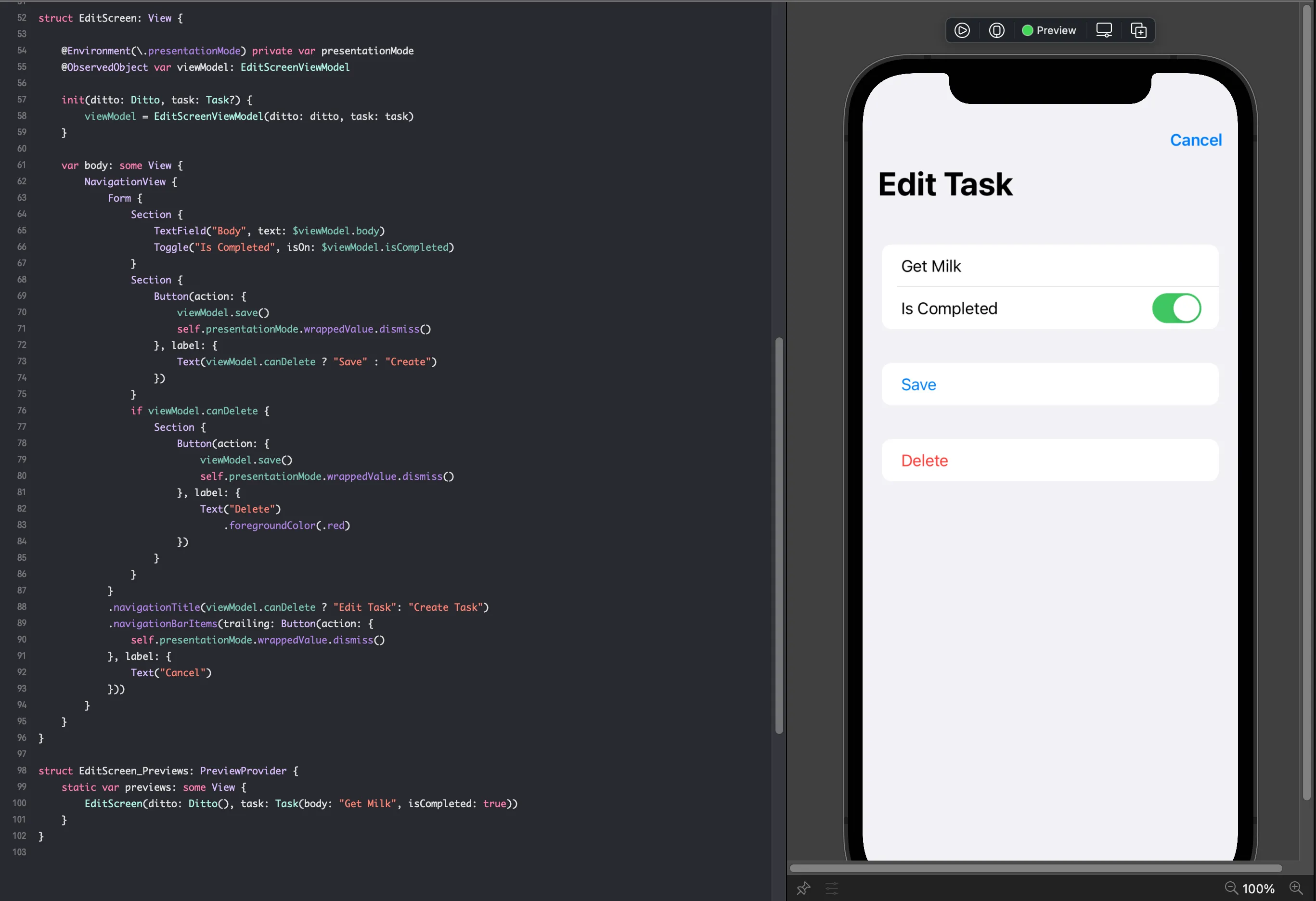
Like the TasksListScreen.swift in the previous section, we will create an EditScreen.swift. This screen will use SwiftUI's Form and Section wrapper.
- An TextField which we use to edit the Task.body
- A Switch which is used to edit the Task.isCompleted
- A Button for saving a task.
- A Button for deleting a task
- In the EditScreen we need to add a @Environment(\.presentationMode) private var presentationMode. In SwiftUI views house some environment variables. Because the TasksListScreen presened the EditScreen as a .sheet, we need a way to dismiss the current screen if the user taps any of the buttons. To learn more about Environment, read Apple's official documentation.. To dismiss the current screen we can call self.presentationMode.wrappedValue.dismiss()
- Like before, store the EditScreenViewModel as an ObservedObject. Pass the task: Task? and the ditto instance to properly initialize the EditScreenViewModel. Now the ViewModel should know if the user is attempting a creation or update flow.
- We now can bind the TextField for the $viewModel.body and Toggle to the $viewModel.isCompleted. Notice the $, this allows SwiftUI fields to bi-directionally edit these @Published values and trigger efficient view reloading.
- Bind the save button's action: handler to the viewModel.save() function and dismiss the view. Whenever the user clicks the save button, they will save the current data and return back to the TasksListScreen
- If the viewModel.canDelete is true, we can show a delete Button. Notice how we don't need the $ since we are only reading the value once. Moreover, we do not need to tell SwiftUI to re-render on canDelete since it will never change during the EditScreen's life cycle.
- Bind the delete button's action: to the viewModel.delete() function and dismiss the view.
- Finally we add a EditScreen_Previews so that you can easily watch the view's final rendering as you develop.
struct EditScreen: View {

    // 1.
    // highlight-next-line
    @Environment(\.presentationMode) private var presentationMode

    // 2.
    // highlight-start
    @ObservedObject var viewModel: EditScreenViewModel

    init(ditto: Ditto, task: Task?) {
        viewModel = EditScreenViewModel(ditto: ditto, task: task)
    }
    // highlight-end

    var body: some View {
        NavigationView {
            Form {
                Section {
                    // 3.
                    // highlight-start
                    TextField("Body", text: $viewModel.body)
                    Toggle("Is Completed", isOn: $viewModel.isCompleted)
                    // highlight-end
                }
                Section {
                    Button(action: {
                        // 4.
                        // highlight-start
                        viewModel.save()
                        self.presentationMode.wrappedValue.dismiss()
                        // highlight-end
                    }, label: {
                        Text(viewModel.canDelete ? "Save" : "Create")
                    })
                }
                // 5.
                // highlight-next-line
                if viewModel.canDelete {
                    Section {
                        Button(action: {
                            // 6.
                            // highlight-start
                            viewModel.delete()
                            self.presentationMode.wrappedValue.dismiss()
                            // highlight-end
                        }, label: {
                            Text("Delete")
                                .foregroundColor(.red)
                        })
                    }
                }
            }
            .navigationTitle(viewModel.canDelete ? "Edit Task": "Create Task")
            .navigationBarItems(trailing: Button(action: {
                self.presentationMode.wrappedValue.dismiss()
            }, label: {
                Text("Cancel")
            }))
        }
    }
}

// 7.
// highlight-start
struct EditScreen_Previews: PreviewProvider {
    static var previews: some View {
        EditScreen(ditto: Ditto(), task: Task(body: "Get Milk", isCompleted: true))
    }
}
// highlight-endRun the App!
Congratulations you have successfully created a task app using Ditto!