Jetpack Compose: Defining UI
kotlin android task tutorial walkthrough example jetpack compose
Once you've completed the prerequisite steps, build the UI for your task app with Jetpack Compose:
Prerequisites
Create your Ditto account and app. (Onboarding)
Install the required prerequisites. (Prerequisites - Kotlin)
Install the latest version of Android Studio Arctic Fox.
Install and Set Up
Create the App
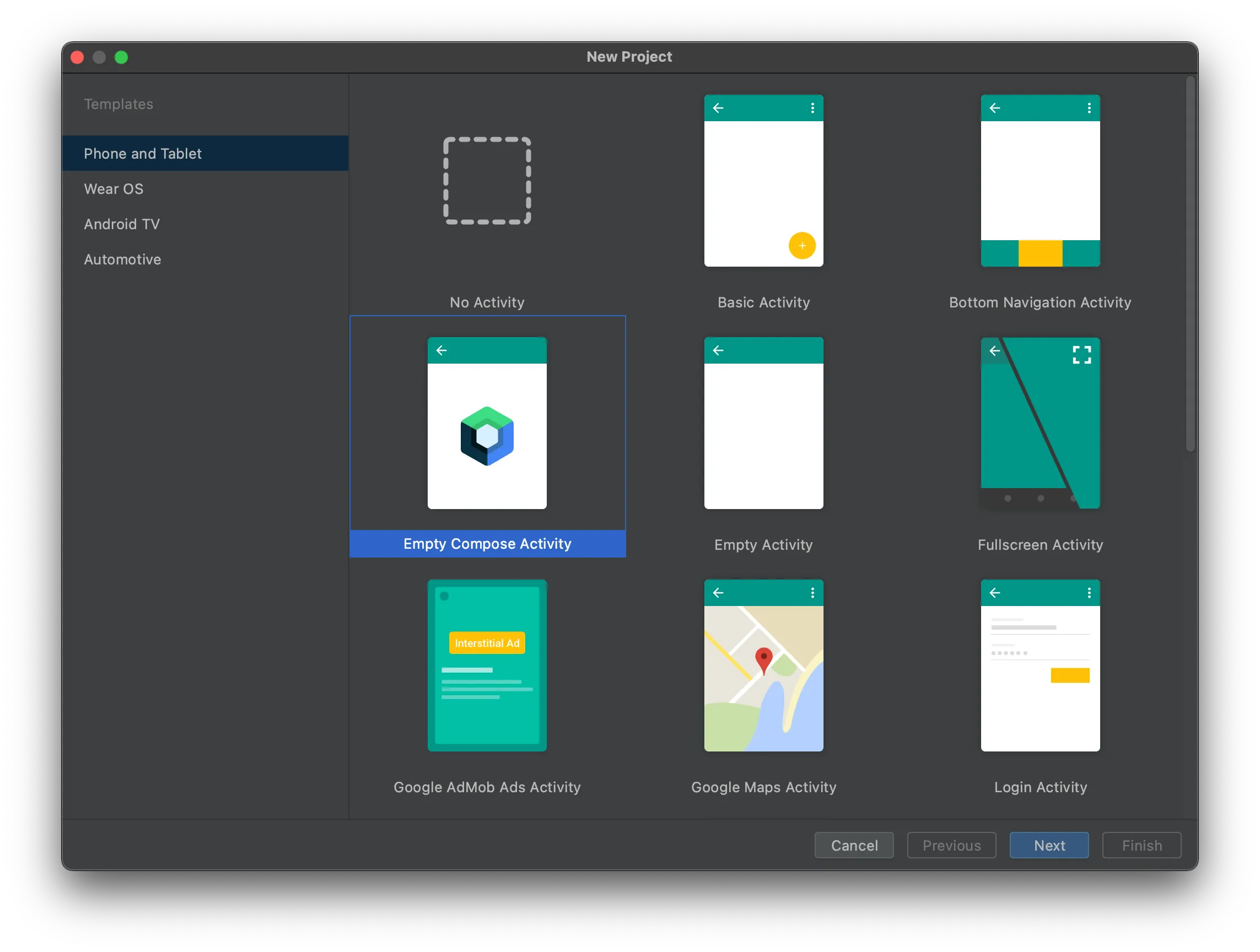
- Click File and select New Project.
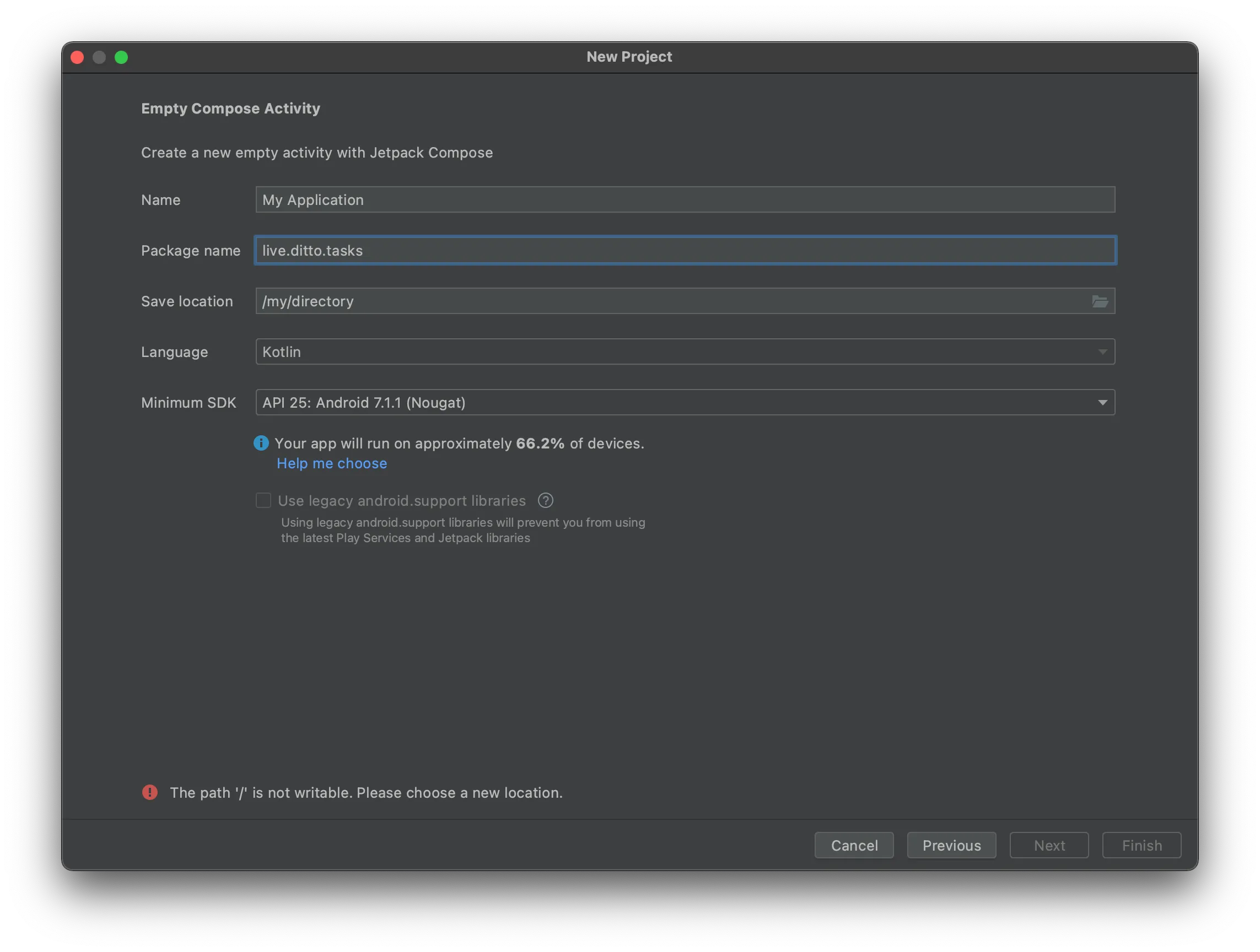
- From the New Project modal, enter the following:
While recommended, the following values are not essential for completing this tutorial.
- Name: "Tasks"
- Package Name: "live.ditto.tasks"
- Save location: choose a directory
- Minimum SDK: "API 23: Android 6 (Marshmallow)"
3. Finally, click Finish and wait for Android Studio to set up the project.
Install Ditto
Android requires requesting permission to use Bluetooth Low Energy and WiFi Aware.
Follow the Kotlin Installation Environment Setup and Android Platform Permissions Setup sections to setup your Android environment.
Add Jetpack Compose Dependencies
In your app Module build.gradle file, add the additional dependencies.
dependencies {
  // ... existing dependencies

  // Add the following dependencies below

  // Jetpack Compose View Model
  implementation 'androidx.lifecycle:lifecycle-viewmodel-compose:1.0.0-alpha07'
  // Live Data
  implementation "androidx.compose.runtime:runtime-livedata:$compose_version"
  // JetPack Compose Navigation
  implementation "androidx.navigation:navigation-compose:2.4.0-alpha07"
}Add Vector Icons
We will need a couple of additional icons to show the tasks' completed, and incompleted states. We will reference these vector resources in our code later.
Right-click res > drawable and add a new Vector Asset:
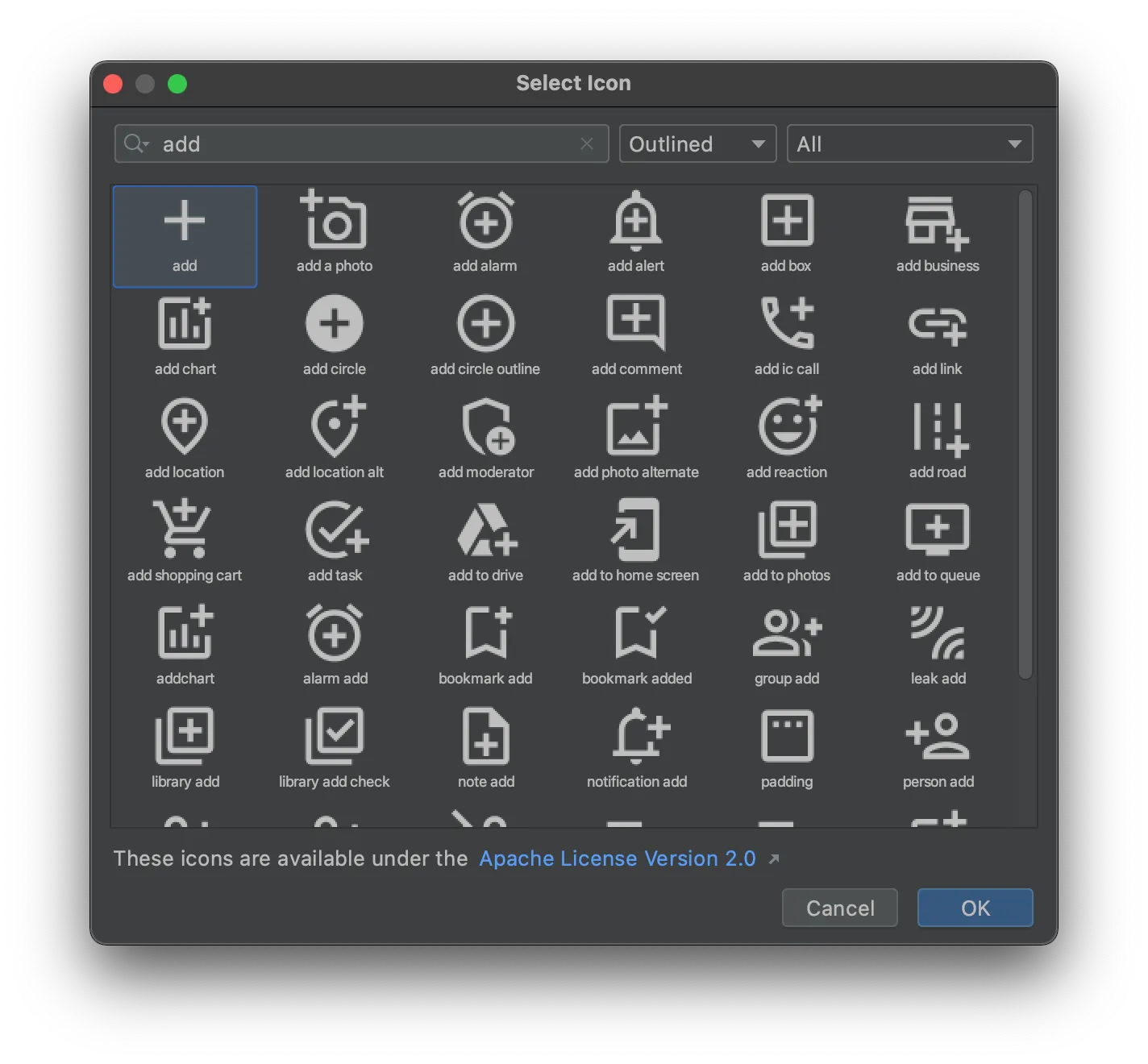
Click the "add" icon and select it for size `24`
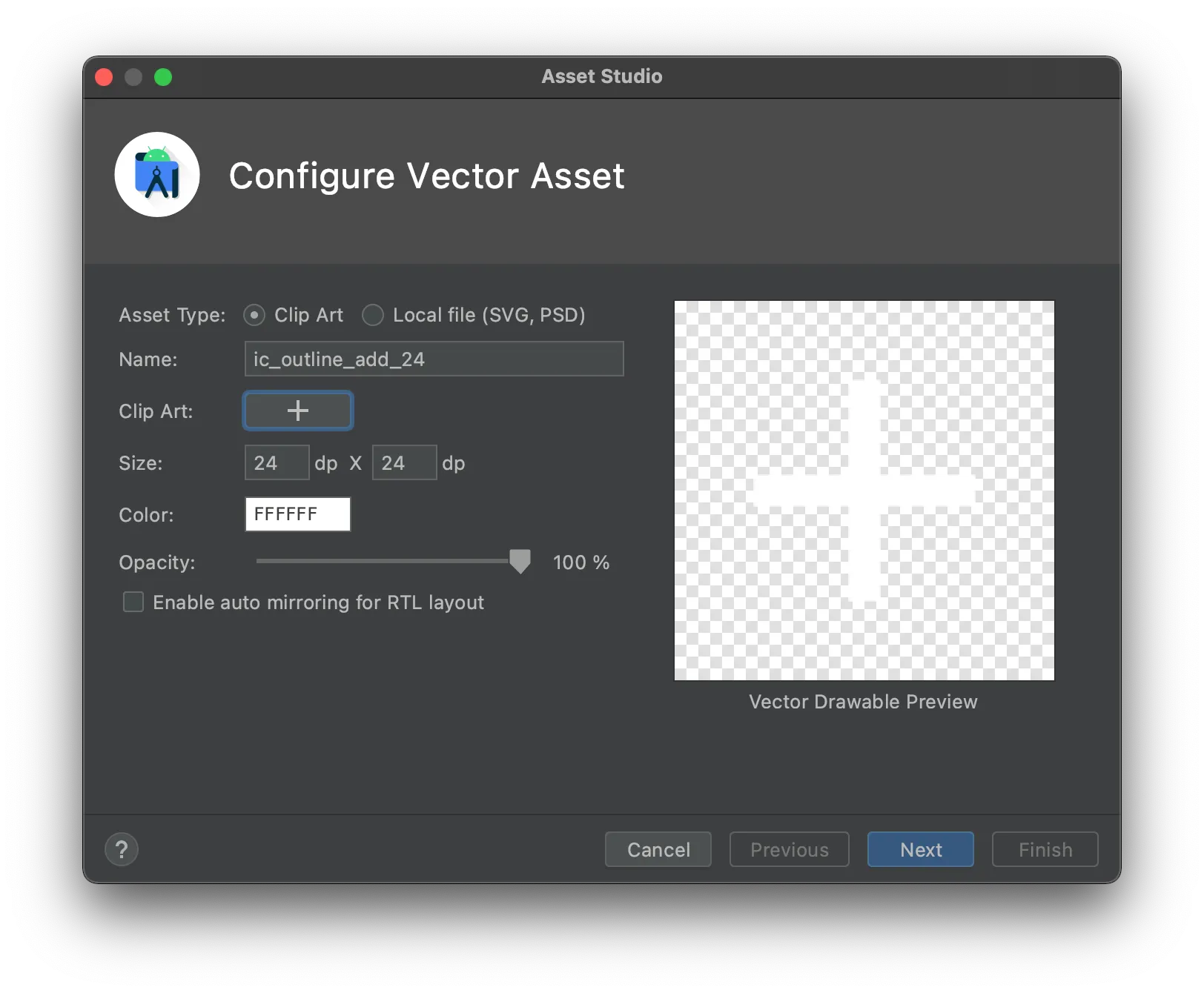
Repeat the previous steps for adding:
- a circle_filled (icon name: "Brightness 1")
- circle_outline (icon name: "Panorama fish eye")
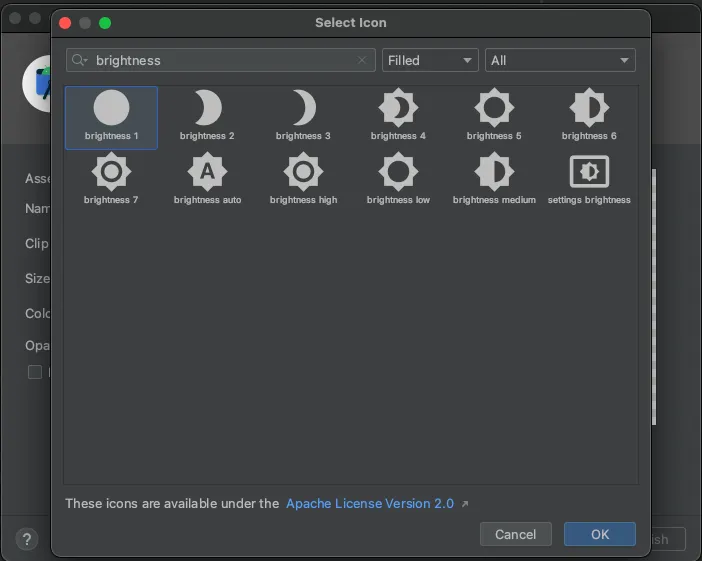
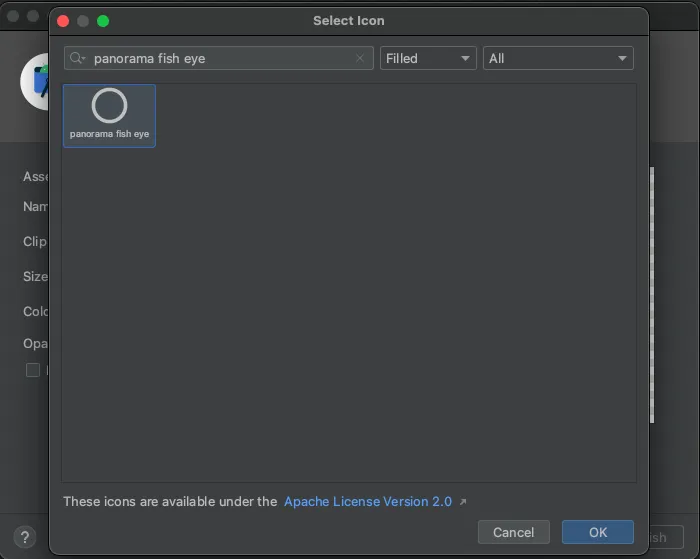
You should have have 3 additional drawables with the following names:
- ic_baseline_add_24.xml
- ic_baseline_brightness_1_24.xml
- ic_outline_panorama_fish_eye_24.xml
Configure Ditto
Create Application Class
Typically, applications with Ditto will need to run Ditto as a singleton. To construct Ditto it'll need access to a live Android Context. Since the Application class is a singleton and has the necessary Context, we can create a subclass called TasksApplication.kt.
- Add a companion object and declare var ditto: Ditto? = null. This will create a static variable that we can always access throughout our entire application.
- In the override fun onCreate(), construct Ditto with DefaultAndroidDittoDependencies as follows:
import android.app.Application
import live.ditto.Ditto
import live.ditto.DittoIdentity
import live.ditto.android.DefaultAndroidDittoDependencies


class TasksApplication: Application() {

    companion object {
        var ditto: Ditto? = null;
    }

    override fun onCreate() {
        super.onCreate()
        // construct a DefaultAndroidDittoDependencies object with the applicationContext
        val androidDependencies = DefaultAndroidDittoDependencies(applicationContext)
        // for this example we will use a Development identity
        val identity = DittoIdentity.OnlinePlayground(
            dependencies = androidDependencies,
            token = "REPLACE_ME",
            appId = "REPLACE_ME",)
        ditto = Ditto(androidDependencies, identity)
    }

}
Now you will be able to access this Ditto anywhere in your application like so:
val docs = TasksApplication.ditto!!.store["tasks"].find("!isDeleted").exec()Start Ditto Sync
When Android Studio created the project, it should have created a file called MainActivity.kt. In this file, we will take the singleton TasksApplication.ditto!! and begin to start the sync process with startSync()
The app will show a Toast error if startSync encounters a mistake. Don't worry if an error occurs or if you omit this step, Ditto will continue to work as a local database. However, it's advised that you fix the errors to see the app sync across multiple devices.
class MainActivity : ComponentActivity() {

    val ditto = TasksApplication.ditto

    override fun onCreate(savedInstanceState: Bundle?) {
      super.onCreate(savedInstanceState)

      try {
          ditto!!.startSync()
      } catch (e: DittoError) {
          // 2.
          Toast.makeText(
              this@MainActivity,
              """
                  Uh oh! There was an error trying to start Ditto's sync feature.
                  That's okay, it will still work as a local database.
                  This is the error: ${e.localizedMessage}
              """.trimIndent(), Toast.LENGTH_LONG
          ).show()
      }

      setContent {
          // ...
      }

      ditto!!.store["tasks"].find("isDeleted == true").evict()
    }

    fun checkPermissions() {
        val missing = DittoSyncPermissions(this).missingPermissions()
        if (missing.isNotEmpty()) {
            this.requestPermissions(missing, 0)
        }
    }

    override fun onRequestPermissionsResult(
    requestCode: Int,
    permissions: Array<out String>,
    grantResults: IntArray
    ) {
        super.onRequestPermissionsResult(requestCode, permissions, grantResults)
        // Regardless of the outcome, tell Ditto that permissions maybe changed
        ditto?.refreshPermissions()
    }
}Create a Task Data Class
Ditto is a document database, which represents all of its rows in the datastore in a JSON-like structure. In this tutorial, we will define each task like so:
{
  "_id": "123abc",
  "body": "Get Milk",
  "isCompleted": true
}
These Task documents will all be in the "tasks" collection. We will be referencing this collection throughout this tutorial with:
val tasksCollection = TasksApplication.ditto!!.store["tasks"]Ditto documents have a flexible structure. Oftentimes, in strongly-typed languages like Kotlin, we will create a data structure to give more definition to the app.
Create a new Kotlin file called Task.kt in your project.
data class Task(
    val _id: String = UUID.randomUUID().toString(),
    val body: String,
    val isCompleted: Boolean
) {
    constructor(document: DittoDocument) : this(
        document["_id"].stringValue,
        document["body"].stringValue,
        document["isCompleted"].booleanValue
    ) {

    }
}
This data class takes a DittoDocument and safely parses out the values into native Kotlin types. We also added an additional constructor that allows for us to preview data without requiring DItto.
So now in our application if we want a List<Task> we write the following code:
val tasks: List<Task> = TasksApplication
  .ditto!!.store["tasks"]
  .find("!isDeleted")
  .exec().map { it -> Task(it) }
Once we set up our user interface, you'll notice that reading these values becomes a bit easier with this added structure.
Navigation
Creating a Root Navigation
This application will have two Screens which are just Jetpack Compose views.
- TasksListScreen.kt - A list where we can show the tasks.
- EditScreen.kt - Where we can edit, create, and delete the Task
Create a file called Root.kt file and add a Navigation Controller and a NavHost to the Root of our application.
You'll notice references to TasksListScreen and EditScreen, don't worry we will add them there.
The Root of our application hosts a navController which we use to switch between each Screen. There are 3 routes:
- tasks which will bring you the TasksListScreen
- tasks/edit which will bring you the EditScreen but will be for creating tasks. Notice that we will give a null to the taskId. This same screen will be in a "create" mode if the taskId is null
- tasks/edit/{taskId} which will bring you the EditScreen but will be for editing tasks. Notice that there is a "{taskId}" portion to this route. Similar to web apps, we will parse out a Task._id string from the route and use that for editing.
@Composable
fun Root() {
    val navController = rememberNavController()

    // A surface container using the 'background' color from the theme
    Surface(color = R.colors.white) {
        NavHost(navController = navController, startDestination = "tasks") {
            composable("tasks") { TasksListScreen(navController = navController) }
            composable("tasks/edit") {
                EditScreen(navController = navController, taskId = null)
            }
            composable("tasks/edit/{taskId}") { backStackEntry ->
                val taskId: String? = backStackEntry.arguments?.getString("taskId")
                EditScreen(navController = navController, taskId = taskId)
            }
        }
    }
}
Setting the MainAcivity to render Root
Now back in the MainAcivity.kt file look for setContent{ } and replace it completely with the following highlighted lines.
class MainActivity : ComponentActivity() {
    override fun onCreate(savedInstanceState: Bundle?) {
        super.onCreate(savedInstanceState)

        val ditto = TasksApplication.ditto
        try {
            ditto!!.startSync()
        } catch (e: DittoError) {
            Toast.makeText(
                this@MainActivity,
                """
                    Uh oh! There was an error trying to start Ditto's sync feature.
                    That's okay, it will still work as a local database.
                    This is the error: ${e.localizedMessage}
                """.trimIndent(), Toast.LENGTH_LONG
            ).show()
        }

        // highlight-start
        setContent {
            Root()
        }
        // highlight-end
    }
}
Show the List of Tasks
In the last part of the tutorial, we referenced a class called TasksListScreen. This screen will show a List<Task> using a JetPack Compose Column.
Create a TaskRow views
Each row of the tasks will be represented by a @Composable TaskRow which takes in a Task and two callbacks which we will use later.
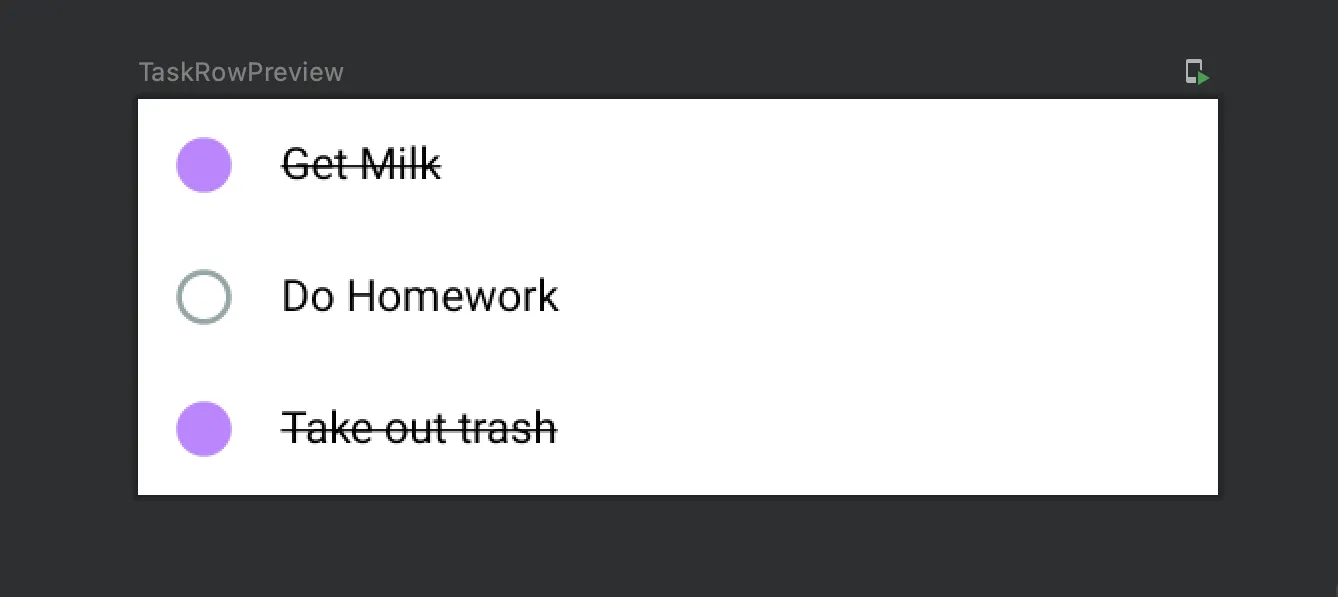
- If the task.isCompleted is true, we will show a filled circle icon and a strike through style for the body.
- If the task.isCompleted is false, we will show a filled circle icon and a strike-through style for the body.
- If the user taps the Icon, we will call a onToggle: ((task: Task) -> Unit)?, we will reverse the isCompleted from true to false or false to true
- If the user taps the Text, we will call a onClickBody: ((task: Task) -> Unit)?. We will use this to navigate to the EditScreen
For brevity, we will skip discussions on styling as it's best to see the code snippet below:
We've also included included a @Preview TaskRowPreview which allows you to quickly see the end result with some test data.
@Composable
fun TaskRow(
    task: Task,
    onToggle: ((task: Task) -> Unit)? = null,
    onClickBody: ((task: Task) -> Unit)? = null) {

    val iconId =
        if (task.isCompleted) R.drawable.ic_baseline_brightness_1_24 else R.drawable.ic_baseline_panorama_fish_eye_24
    val color = if (task.isCompleted) R.color.purple_200 else android.R.color.darker_gray
    var textDecoration = if (task.isCompleted) TextDecoration.LineThrough else
        TextDecoration.None
    Row(
        Modifier
            .fillMaxWidth()
            .padding(12.dp)

    ) {
        Image(
            ImageVector.vectorResource(
                id = iconId
            ),
            "Localized description",
            colorFilter = tint(colorResource(id = color)),
            modifier = Modifier
                .padding(end = 16.dp)
                .size(24.dp, 24.dp)
                .clickable { onToggle?.invoke(task) },
            alignment = CenterEnd
        )
        Text(
            text = task.body,
            textDecoration = textDecoration,
            fontSize = 16.sp,
            modifier = Modifier
                .alignByBaseline()
                .fillMaxWidth()
                .clickable { onClickBody?.invoke(task) })
    }
}

/**
 * Used to preview the code:
 */
@Preview(showBackground = true)
@Composable
fun TaskRowPreview() {
    Column() {
        TaskRow(task = Task(UUID.randomUUID().toString(), "Get Milk", true))
        TaskRow(task = Task(UUID.randomUUID().toString(), "Do Homework", false))
        TaskRow(task = Task(UUID.randomUUID().toString(), "Take out trash", true))
    }
}
Create a @Composable TaskList
Next, we will need to show a List<Task> by looping over it and creating a TaskRow for each element. This gives us a scrollable list behavior.
- The TaskList takes in a List<Task> and loops over it in a Column with a .forEach loop.
- Each iteration of the loop will render a Task(task)
- We've also added onClickBody and onToggle callback that matches the Task.onClickBody and Task.onToggle functions.
We've also included a TaskListPreview so that you can add some test data.
@Composable
fun TasksList(
    tasks: List<Task>,
    onToggle: ((taskId: String) -> Unit)? = null,
    onSelectedTask: ((taskId: String) -> Unit)? = null
) {
    Column() {
        tasks.forEach { task ->
            TaskRow(
                task = task,
                onClickBody = { onSelectedTask?.invoke(it._id) },
                onToggle = { onToggle?.invoke(it._id) }
            )
        }
    }
}

@Preview(
    showBackground = true,
    showSystemUi = true,
    device = Devices.PIXEL_3
)
@Composable
fun TaskListPreview() {
    TasksList(
        tasks = listOf(
            Task(UUID.randomUUID().toString(), "Get Milk", true),
            Task(UUID.randomUUID().toString(), "Get Oats", false),
            Task(UUID.randomUUID().toString(), "Get Berries", true),
        )
    )
}Create a @Composable TasksListScreenViewModel
The entire screen's data will be completely controlled by a Jetpack Compose ViewModel. The use of ViewModel is a design pattern called MVVM or Model View ViewModel which strives to separate all data manipulation (Model and ViewModel) and data presentation (UI or View) into distinct areas of concern. When it comes to Ditto, we recommend that you never include references to ditto in @Composable types. All interactions with ditto for insert, update, find, remove and observeLocal should be within a ViewModel.
- Now create a new file called TasksListScreenViewModel.kt
- Add a property called val tasks: MutableLiveData<List<Task>> = MutableLiveData(emptyList()). This will house all of our tasks that the TasksListScreen can observeLocal for changes. When any MutableLiveData type changes, Jetpack Compose will intelligently tell @Composable types to reload with the necessary changes.
- Create a liveQuery and subscription by observing/subscribing to all the tasks documents. Remember our Task data class that we created? We will now map all the DittoDocument to a List<Task> and set them to the tasks.
- Ditto's DittoLiveQuery and DittoSubscription types should be disposed by calling close() once the ViewModel is no longer necessary. For a simple application, this isn't necessary but it's always good practice once you start building more complex applications.
class TasksListScreenViewModel: ViewModel() {
    val tasks: MutableLiveData<List<Task>> = MutableLiveData(emptyList())

    val liveQuery = TasksApplication.ditto!!.store["tasks"]
        .find("!isDeleted").observeLocal { docs, _ ->
            tasks.postValue(docs.map { Task(it) })
        }

    val subscription = TasksApplication.ditto!!.store["tasks"]
        .find("!isDeleted").subscribe()

    fun toggle(taskId: String) {
        TasksApplication.ditto!!.store["tasks"]
            .findById(DittoDocumentId(taskId))
            .update { mutableDoc ->
                val mutableDoc = mutableDoc?.let { it } ?: return@update
                mutableDoc["isCompleted"].set(!mutableDoc["isCompleted"].booleanValue)
            }
    }

    override fun onCleared() {
        super.onCleared()
        liveQuery.close()
        subscription.close()
    }
}One of the features that we added to the TaskRow is to toggle the isCompleted flag of the document once a user clicks on the circle Icon. We will need to hook this functionality up to edit the Ditto document.
This toggle function will take the task, find it by its _id and switch its isCompleted value to the opposite value.
// ***
fun toggle(taskId: String) {
    TasksApplication.ditto!!.store["tasks"]
        .findById(DittoDocumentId(taskId))
        .update { mutableDoc ->
            val mutableDoc = mutableDoc?.let { it } ?: return@update
            mutableDoc["isCompleted"].set(!mutableDoc["isCompleted"].booleanValue)
        }
}
Notice that we DO NOT HAVE TO manipulate the tasks value. Calling update will automatically fire the liveQuery to update the tasks. You can always trust the liveQuery to immediately update the val tasks: MutableLiveData<List<Task>>. There is no reason to poll or force reload. Ditto will automatically handle the state changes.
Create the TasksListScreen
Finally, let's create the TasksListScreen. This @Composable is where the navController, TasksListScreenViewModel and TaskList all come together.
The following code for TasksListScreen is rather small but a lot of things are happening. Follow the steps and look for the appropriate comments that line up to the numbers below:
- The TasksListScreen takes a navController as a parameter. This variable is used to navigate to EditScreen depending on if the user clicks a floatingActionButton or a TasksListScreen.onClickBody. See the navigation section for more information on the routes
- Create a reference to the TasksListScreenViewModel with val tasksListViewModel: TasksListScreenViewModel = viewModel();
- Now let's tell the @Composable to observe the viewModel.tasks as State object with val tasks: List<Task> by tasksListViewModel.tasks.observeAsState(emptyList()). The syntax by and function observeAsState(emptyList()) will tell the @Composable to subscribe to changes. For more information about observeAsState and ViewModel, click here.
- We'll add a TopAppBar and ExtendedFloatingActionButton along with our TaskList all wrapped in a Scaffold view. Scaffold are handy ways to layout a more "standard" Android screen. Learn more about Scaffolds here
- Set the ExtendedFloatingActionButton.onClick handler to navigate to the task/edit route of the navController
- Use our TaskList inside of the Scaffold.content. Pass the tasks from step 2. into the TaskList
- Bind the TaskList.onToggle to the tasksListViewModel.toggle
- Bind the TaskList.onClickBody to the navController.navigate("tasks/edit/${task._id}"). This will tell the navController to go the EditScreen (we will create this in the next section)
@Composable
fun TasksListScreen(navController: NavController) {
    // 2.
    val tasksListViewModel: TasksListScreenViewModel = viewModel();
    // 3.
    val tasks: List<Task> by tasksListViewModel.tasks.observeAsState(emptyList())

    // 4.
    Scaffold(
        topBar = {
            TopAppBar(
                title = { Text("Tasks Jetpack Compose") },
                backgroundColor = colorResource(id = R.color.purple_700)
            )
        },
        floatingActionButton = {
            ExtendedFloatingActionButton(
                icon = { Icon(Icons.Filled.Add, "") },
                text = { Text(text = "New Task") },
                // 5.
                onClick = { navController.navigate("tasks/edit") },
                elevation = FloatingActionButtonDefaults.elevation(8.dp)
            )
        },
        floatingActionButtonPosition = FabPosition.End,
        content = {
            TasksList(
                // 6
                tasks = tasks,
                // 7.
                onToggle = { tasksListViewModel.toggle(it) },
                // 8.
                onClickBody = { task ->
                    navController.navigate("tasks/edit/${task}")
                }
            )
        }
    )
}
Editing Tasks
Our final screen will be the EditScreen. The EditScreen will be in charge of 3 functions:
- Editing an existing Task.
- Creating a Task and inserting it into the tasks collection.
- Deleting an existing Task.
Creating the @Composable EditForm
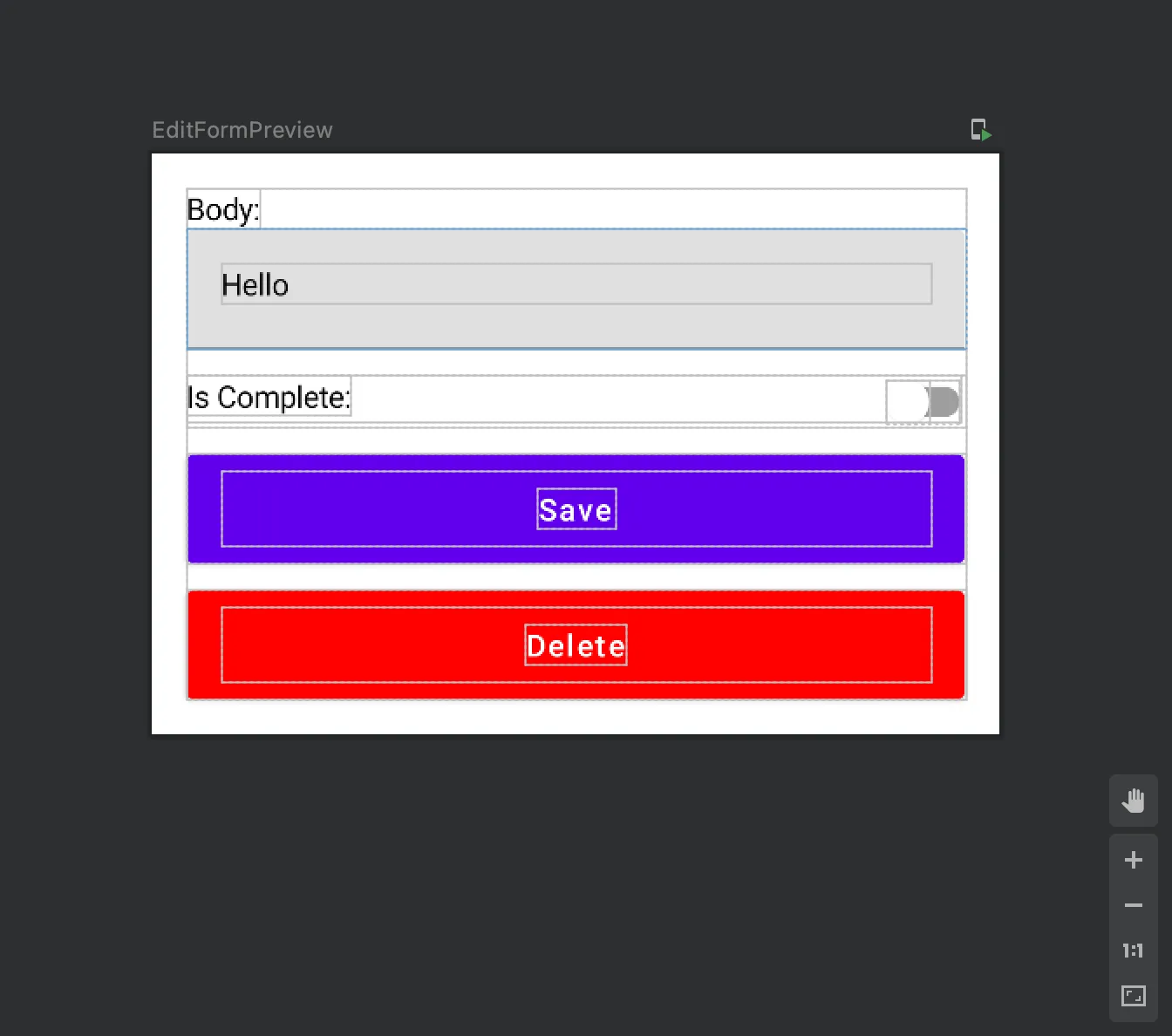
The EditForm is a simple layout that includes:
- A constructor canDelete: Boolean which determines whether or not to show a delete Button.
- A body: String and isCompleted: Boolean.
- Respective callback parameters for changes in the TextField and save and delete Button (see steps 4 to 6).
- An TextField which we use to edit the Task.body.
- A Switch which is used to edit the Task.isCompleted.
- A Button for saving a task.
- A Button for deleting a task.
We've also included a @Preview of the EditForm:
@Composable
fun EditForm(
    // 1
    canDelete: Boolean,
    // 2
    body: String,
    // 3
    onBodyTextChange: ((body: String) -> Unit)? = null,
    // 2
    isComplete: Boolean = false,
    // 3
    onIsComplete: ((isCompleted: Boolean) -> Unit)? = null,
    // 3
    onSaveButtonClicked: (() -> Unit)? = null,
    // 3
    onDeleteButtonClicked: (() -> Unit)? = null,
) {
    Column(modifier = Modifier.padding(16.dp)) {
        Text(text = "Body:")
        // 4
        TextField(
            value = body,
            onValueChange = { onBodyTextChange?.invoke(it) },
            modifier = Modifier
                .fillMaxWidth()
                .padding(bottom = 12.dp)
        )
        Row(
            modifier = Modifier
                .fillMaxWidth()
                .padding(bottom = 12.dp),
            Arrangement.SpaceBetween
        ) {
            Text(text = "Is Complete:")
            // 5
            Switch(checked = isComplete, onCheckedChange = { onIsComplete?.invoke(it) })
        }
        // 6
        Button(
            onClick = {
                onSaveButtonClicked?.invoke()
            },
            modifier = Modifier
                .padding(bottom = 12.dp)
                .fillMaxWidth(),
        ) {
            Text(
                text = "Save",
                modifier = Modifier.padding(8.dp)
            )
        }
        if (canDelete) {
            // 7
            Button(
                onClick = {
                    onDeleteButtonClicked?.invoke()
                },
                colors = ButtonDefaults.buttonColors(
                    backgroundColor = Color.Red,
                    contentColor = Color.White),
                modifier = Modifier
                    .fillMaxWidth(),
            ) {
                Text(
                    text = "Delete",
                    modifier = Modifier.padding(8.dp)
                )
            }
        }
    }
}

@Preview(
    showBackground = true,
    device = Devices.PIXEL_3
)
@Composable
fun EditFormPreview() {
    EditForm(canDelete = true, "Hello")
}Creating the EditScreenViewModel
Like the TasksListScreenViewModel, the EditScreenViewModel is a ViewModel for the EditScreen. Create a file called EditScreenViewModel.kt.
- This ViewModel will be given a setupWithTask function that takes in a taskId: String?. If the taskId == null, then the user is attempting to create a Task. If the taskId != null, the user has supplied to the EditScreen a taskId to edit.
- If taskId != null, we will fetch a task from Ditto, and assign it to isCompleted: MutableLiveData<Boolean> and body: MutableLiveData<String> and assign canDelete: MutableLiveData<Boolean> to true
- We add a save functionality to either .insert or .update into Ditto depending if the _id is null or not.
- We add another function, delete, to call .remove
class EditScreenViewModel: ViewModel() {

    var _id: String? = null;

    // 2.
    var body = MutableLiveData<String>("")
    var isCompleted = MutableLiveData<Boolean>(false)
    var canDelete = MutableLiveData<Boolean>(false)

    // 1.
    fun setupWithTask(taskId: String?) {
        canDelete.value = taskId != null
        val taskId: String = taskId?.let { it } ?: return;
        val doc: DittoDocument = TasksApplication.ditto!!.store["tasks"]
            .findById(DittoDocumentId(taskId))
            .exec()?.let { it } ?: return;
        val task = Task(doc)
        _id = task._id
        body.value = task.body
        isCompleted.value = task.isCompleted

    }

    // 3.
    fun save() {
        if (_id == null) {
            // insert
            TasksApplication.ditto!!.store["tasks"]
                .insert(mapOf(
                    "body" to body.value,
                    "isCompleted" to isCompleted.value
                ))
        } else {
            // update
            TasksApplication.ditto!!.store["tasks"].findById(DittoDocumentId(_id!!))
                .update { mutableDoc ->
                    val mutableDoc = mutableDoc?.let { it } ?: return@update
                    mutableDoc["body"].set(body.value ?: "")
                    mutableDoc["isCompleted"].set(isCompleted.value ?: "")
                }
        }
    }

    // 4.
    fun delete() {
        TasksApplication.ditto!!.store["tasks"].upsert(mapOf(
            "_id" to _id!!,
            "isDeleted" to true
        ))
    }
}Creating the EditScreen
Just like the TasksListScreen in the previous section, we will now create an EditScreen.kt.
- Add a constructor that accepts a navController and a task: String?. See the section on navigation to reference these values.
- Create a reference to the EditScreenViewModel
- Call setupWithTask with the taskId from the constructor. The EditScreenViewModel will now know if the user is attempting to edit or create a new task.
- To help the user show if they are attempting or edit or create, we will show a TopAppBar Text with an appropriate title.
- We will call observeAsState on the EditScreenViewModel's MutableLiveData properties and extract the value to feed into our views.
- Create a Scaffold with a TopAppBar and content { EditForm... }
- Like before, we will bind all the change handlers from the EditForm and the values back to the viewModel
- Upon saving or deleting, we will tell the navController to popBackStack, which will cause the app to go back to the TasksListScreen
@Composable
fun EditScreen(navController: NavController, taskId: String?) { // 1.
    // 2.
    val editScreenViewModel: EditScreenViewModel = viewModel();
    // 3.
    editScreenViewModel.setupWithTask(taskId = taskId)
    // 4.
    val topBarTitle = if (taskId == null) "New Task" else "Edit Task"

    // 5.
    val body: String by editScreenViewModel.body.observeAsState("")
    val isCompleted: Boolean by editScreenViewModel.isCompleted.observeAsState(initial = false)
    val canDelete: Boolean by editScreenViewModel.canDelete.observeAsState(initial = false)

    // 6.
    Scaffold(
        topBar = {
            TopAppBar(
                title = { Text(topBarTitle) },
                backgroundColor = colorResource(id = R.color.purple_700)
            )
        },
        content = {
            // 7.
            EditForm(
                canDelete = canDelete,
                body = body,
                onBodyTextChange = { editScreenViewModel.body.value = it },
                isComplete = isCompleted,
                onIsComplete = { editScreenViewModel.isCompleted.value = it },
                onSaveButtonClicked = {
                    editScreenViewModel.save()
                    // 8.
                    navController.popBackStack()
                },
                onDeleteButtonClicked = {
                    editScreenViewModel.delete()
                    // 8.
                    navController.popBackStack()
                }
            )
        }
    )
}Run the App!
Congratulations you have successfully created a task app using Ditto! 🎉