MAUI Task App
This guide shows you how to build a task list app using Ditto and .NET Maui, including how to prepare a MAUI project, set up your app, integrate Ditto, and implement basic create, read, update, delete (CRUD) operations.
For the complete code, see getditto > template-app-maui-tasks-app repository in GitHub.
Prerequisites
Before you begin, make sure you meet the following preconditions:
- Visual Studio Code with the following extensions:
- .NET MAUI
- C# Dev Kit
- NuGet Gallery
- .NET version 7.0 or later.
- If developing for iOS, Xcode
- If developing for Android, Android SDK
For more information, see the official Microsoft .NET MAUI > Installation documentation.
Preparing the MAUI Project
Create the MAUI project.
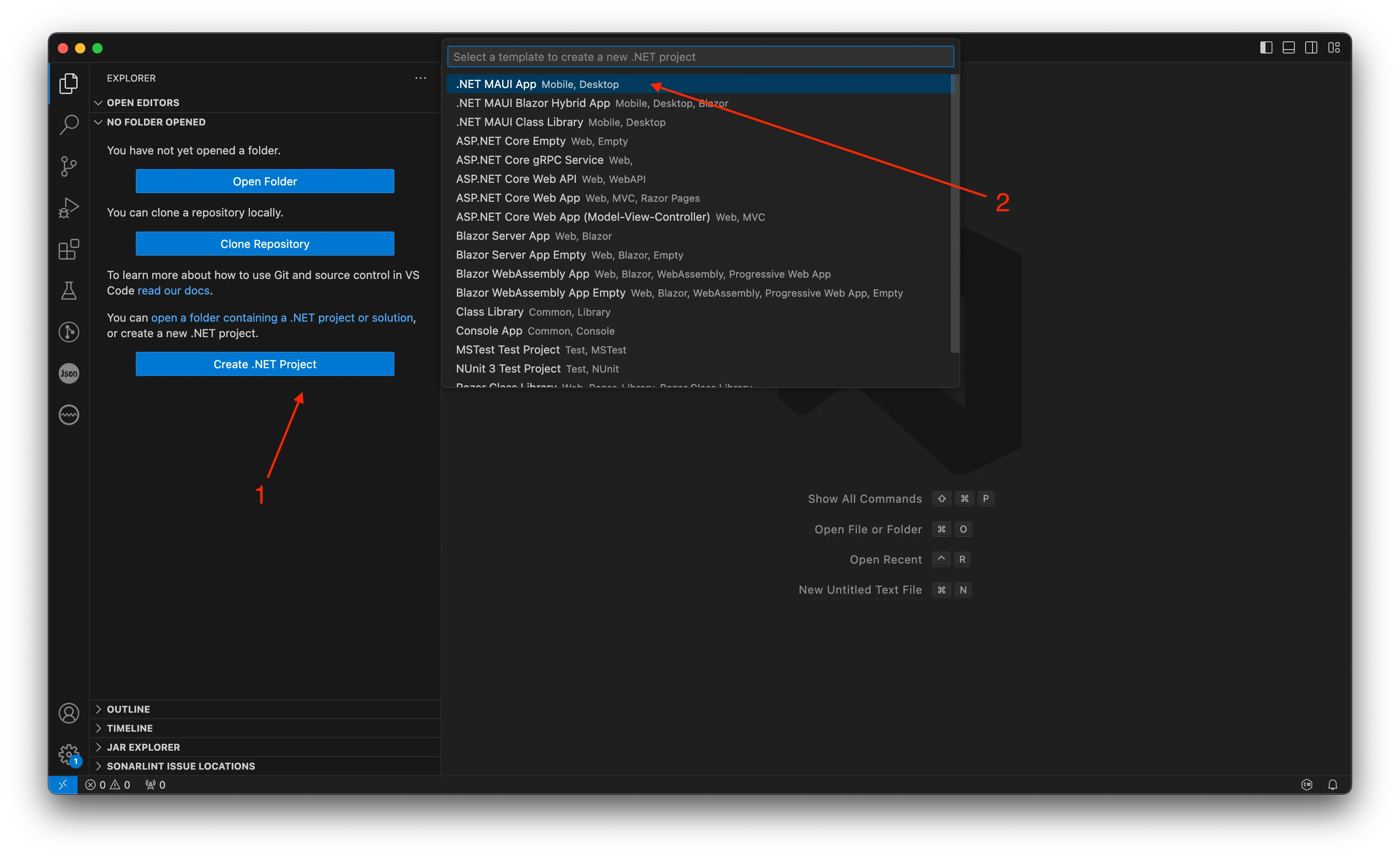
Name the project “DittoMauiTasksApp” and place it in your desired location.
You’ll get a blank .NET MAUI application.
Navigate to DittoMauiTasksApp.csprojand, for now, keep only the iOS and Android targets:
Ditto 4.5.0 supports only .NET iOS and Android. Windows and Mac support is coming soon.
<TargetFrameworks>net7.0-android;net7.0-ios;</TargetFrameworks>Let’s add some required dependencies. From VS Code’s command pallet, open the NuGet Gallery (you need the extension installed).

Add the latest available Ditto version:
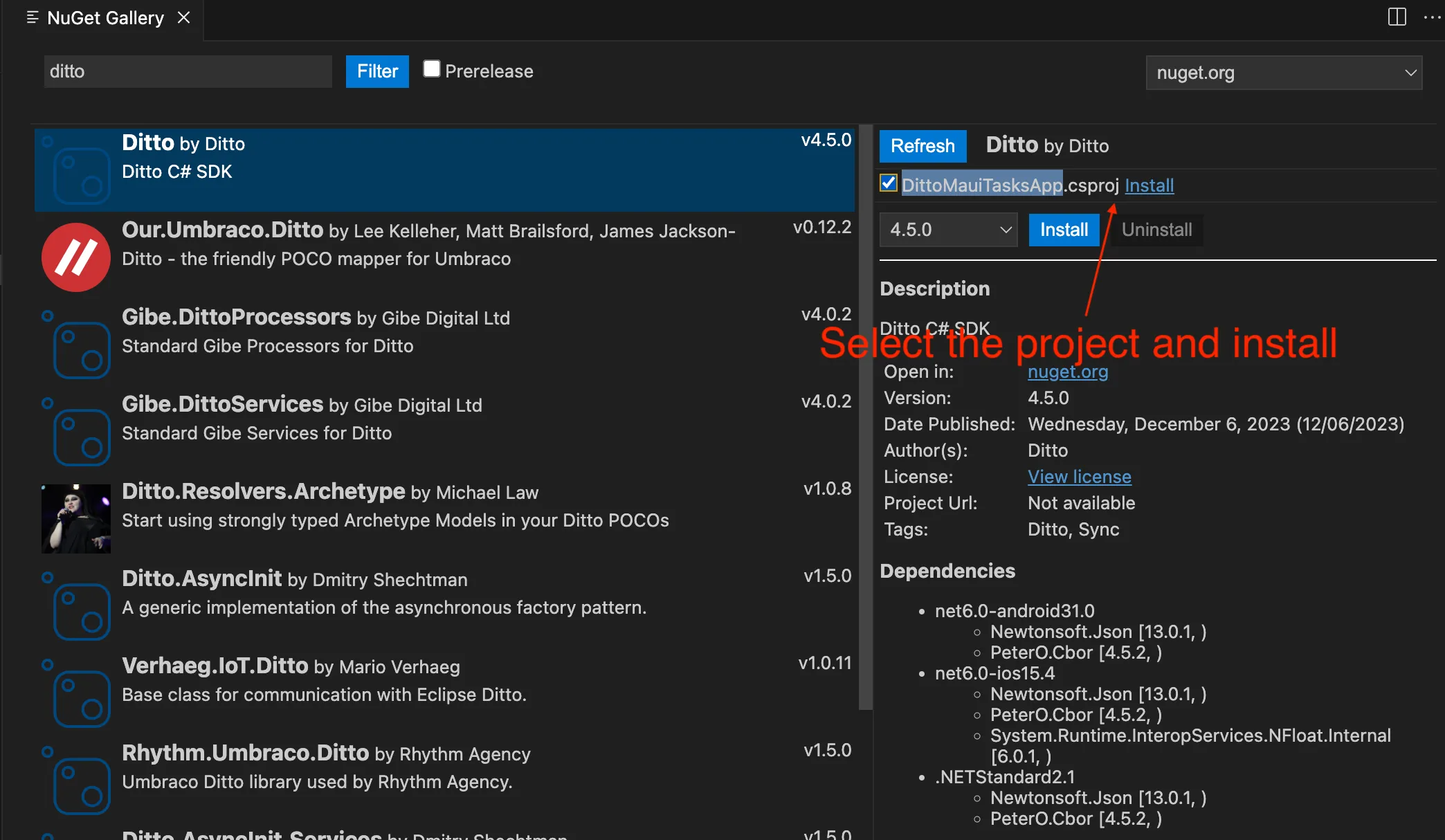
We’ll be using MVVM so make sure to also add CommunityToolkit.Mvvm by Microsoft.
Getting the App Ready
This section includes setting up the MAUI tasks app, without integrating Ditto.
You can check out this branch: https://github.com/getditto/template-app-maui-tasks-app/tree/tasks-app-plain to get this section completed.
Understanding the Structure
Before integrating Ditto, let’s create the app skeleton. We’ll be using the Shell-based template and the MVVM architectural pattern. We’ll have a single page application, so this means we’ll have:
Model - Task
ViewModel - TaskPageViewModel
View - TasksPage
Add the Model
For this application, the model will be a simple Task, with an Id, a body and a completed flag. In the Model folder let’s add the DittoTask class:
using CommunityToolkit.Mvvm.ComponentModel;

namespace DittoMauiTasksApp
{
    public partial class DittoTask : ObservableObject
    {
        [ObservableProperty]
        string id;

        [ObservableProperty]
        string body;

        [ObservableProperty]
        bool isCompleted;
    }
}
Add the ViewModel
The ViewModel will handle the logic behind the view. This means storing and working with the list of tasks that is going to be displayed on the UI.
In the ViewModels folder create a TasksPageviewModelwith the following content:
using System.Collections.ObjectModel;
using CommunityToolkit.Mvvm.ComponentModel;
using CommunityToolkit.Mvvm.Input;
using DittoMauiTasksApp.Utils;

namespace DittoMauiTasksApp.ViewModels
{
    public partial class TasksPageviewModel : ObservableObject
    {
        private readonly IPopupService popupService;

        [ObservableProperty]
        ObservableCollection<DittoTask> tasks = new();

        public TasksPageviewModel(IPopupService popupService)
        {
            this.popupService = popupService;
        }

        [RelayCommand]
        private async Task AddTaskAsync()
        {
            string taskData = await popupService.DisplayPromptAsync("Add Task", "Add a new task:");

            if (taskData == null)
            {
                //nothing was entered.
                return;
            }

            Tasks.Add(new DittoTask() {
                IsCompleted = false,
                Body = taskData
            });
        }

        [RelayCommand]
        private void DeleteTask(DittoTask task)
        {
            Tasks.Remove(task);
        }
    }
}
The ViewModel simply has an ObservableCollection of DittoTask and two commands: to remove and to delete a task.
There’s also an IPopupService, since we need a way to get the Task content. In an Utils folder, you can create the interface:
public interface IPopupService
{
    Task<string> DisplayPromptAsync(string title, string message);
}
And its implementation:
public class PopupService : IPopupService
{
    public Task<string> DisplayPromptAsync(string title, string message)
    {
        Page page = Application.Current?.MainPage;
        return page.DisplayPromptAsync(title, message);
    }
}
Add the View
Create a new folder Views and add move the existing MainPage.xaml (and MainPage.xaml.cs) there. For additional clarity, these can be renamed to TasksPage(don’t forget to change the name in AppShell.xaml). We’ll replace the content with ours - simply a list that will be displaying the Task content and a checkbox - to track it’s completeness.
<?xml version="1.0" encoding="utf-8" ?>
<ContentPage xmlns="http://schemas.microsoft.com/dotnet/2021/maui"
             xmlns:x="http://schemas.microsoft.com/winfx/2009/xaml"
             Title="Ditto Tasks"
             x:Class="DittoMauiTasksApp.TasksPage">

    <ContentPage.ToolbarItems>
        <ToolbarItem Text="Add Task"
                     Command="{Binding AddTaskCommand}"/>

    </ContentPage.ToolbarItems>

    <ListView
        x:Name="listView"
        ItemsSource="{Binding Tasks}"
        SelectionMode="None">
        <ListView.ItemTemplate>
            <DataTemplate>
                <ViewCell>
                    <ViewCell.ContextActions>
                        <MenuItem
                            Text="Delete"
                            Command="{Binding Source={x:Reference listView}, Path=BindingContext.DeleteTaskCommand}"
                            CommandParameter="{Binding}"/>
                    </ViewCell.ContextActions>
                    <Grid
                        Margin="16, 5"
                        ColumnDefinitions="*, Auto">
                        <Label
                            VerticalOptions="Center"
                            Text="{Binding Body}"/>
                        <CheckBox
                            HorizontalOptions="End"
                            IsChecked="{Binding IsCompleted}"/>
                    </Grid>
                </ViewCell>
            </DataTemplate>
        </ListView.ItemTemplate>

    </ListView>

</ContentPage>
And the code-behind, simply setting the Binding Context.
using DittoMauiTasksApp.ViewModels;

namespace DittoMauiTasksApp;

public partial class TasksPage : ContentPage
{
    public TasksPage(TasksPageviewModel viewModel)
    {
        InitializeComponent();

        BindingContext = viewModel;
    }
}
Register Services
Before running the application, you must handle the service registration. In MauiProgram.cs, under CreateMauiApp(), before returning make sure to include:
builder.Services.AddSingleton<IPopupService, PopupService>();
builder.Services.AddTransient<TasksPageviewModel>();
builder.Services.AddTransient<TasksPage>();
Run the Application
You may have to run sudo dotnet workload restore before building.
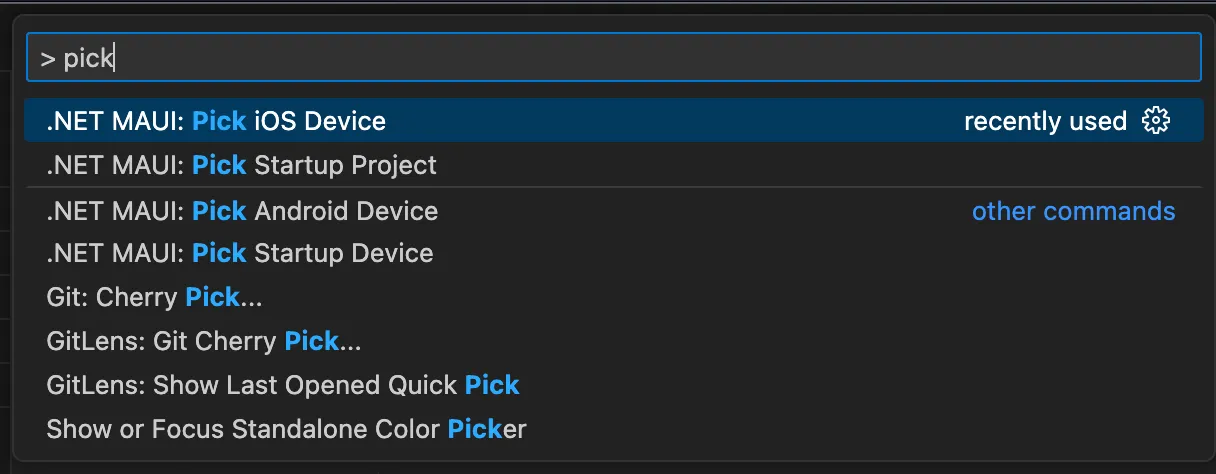
From the VS Code command palette, select the iOS / Android device you want to run the project on.
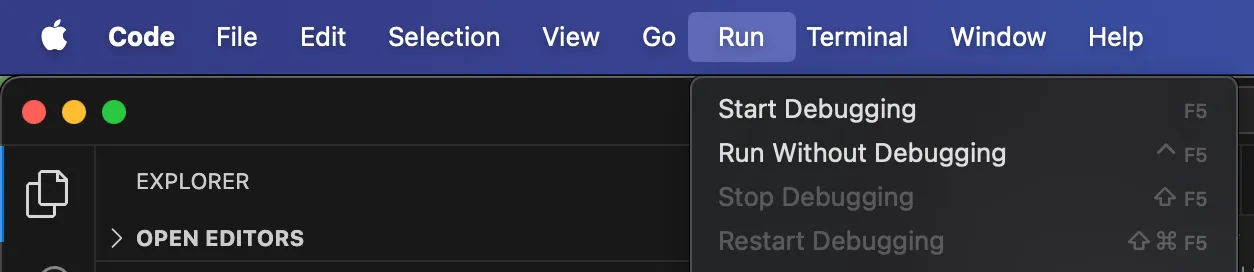
Then go to Run → Start Debugging and select the .NET MAUI debugger when prompted.
We’ll end up with an app that can create, read, update and delete tasks.

Integrating Ditto
Create your Ditto App.
Add permissions.
Add Ditto.
Reference Ditto.
Create a task.
Read tasks.
Update a task.
Delete a task.
Run the app.
Creating your Ditto App
We first need to create a new app in the [Ditto Portal](https://portal.ditto.live/). Apps created on the portal will automatically sync data between them and also to the Ditto Big Peer. Each app created on the portal has a unique appID which can be seen on your app's settings page once the app has been created. This ID is used in subsequent sections to configure your Ditto instance.
Adding Permissions
For Ditto to fully use all the network transports like Bluetooth Low Energy, Local Area Network, Apple Wireless Direct, the app will need to ask the user for permission. For that, platform-specific instructions should be followed, so on iOS these must be specified in Info.Plist while on Android, there is AndroidManifest.xml. For more detailed instructions, see Installing C# SDK.
From the MAUI project:
Update Platforms/iOS/Info.Plist:
<?xml version="1.0" encoding="UTF-8"?>
<!DOCTYPE plist PUBLIC "-//Apple//DTD PLIST 1.0//EN" "http://www.apple.com/DTDs/PropertyList-1.0.dtd">
<plist version="1.0">
<dict>
	<key>LSRequiresIPhoneOS</key>
	<true/>
	<key>UIDeviceFamily</key>
	<array>
		<integer>1</integer>
		<integer>2</integer>
	</array>
	<key>UIRequiredDeviceCapabilities</key>
	<array>
		<string>arm64</string>
	</array>
	<key>UISupportedInterfaceOrientations</key>
	<array>
		<string>UIInterfaceOrientationPortrait</string>
		<string>UIInterfaceOrientationLandscapeLeft</string>
		<string>UIInterfaceOrientationLandscapeRight</string>
	</array>
	<key>UISupportedInterfaceOrientations~ipad</key>
	<array>
		<string>UIInterfaceOrientationPortrait</string>
		<string>UIInterfaceOrientationPortraitUpsideDown</string>
		<string>UIInterfaceOrientationLandscapeLeft</string>
		<string>UIInterfaceOrientationLandscapeRight</string>
	</array>
	<key>XSAppIconAssets</key>
	<string>Assets.xcassets/appicon.appiconset</string>
	<key>NSBluetoothAlwaysUsageDescription</key>
	<string>Uses Bluetooth to connect and sync with nearby devices</string>
	<key>NSLocalNetworkUsageDescription</key>
	<string>Uses WiFi to connect and sync with nearby devices</string>
	<key>NSBonjourServices</key>
	<array>
		<string>_http-alt._tcp.</string>
	</array>
</dict>
</plist>Update Platforms/Android/AndroidManifest.Plist:
<?xml version="1.0" encoding="utf-8"?>
<manifest xmlns:android="http://schemas.android.com/apk/res/android" xmlns:tools="http://schemas.android.com/tools">
	<application android:allowBackup="true" android:icon="@mipmap/appicon" android:roundIcon="@mipmap/appicon_round" android:supportsRtl="true"></application>
	<uses-permission android:name="android.permission.ACCESS_NETWORK_STATE" />
	<uses-permission android:name="android.permission.BLUETOOTH" android:maxSdkVersion="30" />
	<uses-permission android:name="android.permission.BLUETOOTH_ADMIN" android:maxSdkVersion="30" />
	<uses-permission android:name="android.permission.BLUETOOTH_ADVERTISE" tools:targetApi="s" />
	<uses-permission android:name="android.permission.BLUETOOTH_CONNECT" tools:targetApi="s" />
	<uses-permission android:name="android.permission.BLUETOOTH_SCAN" android:usesPermissionFlags="neverForLocation" tools:targetApi="s" />
	<uses-permission android:name="android.permission.ACCESS_FINE_LOCATION" android:maxSdkVersion="32" />
	<uses-permission android:name="android.permission.ACCESS_COARSE_LOCATION" android:maxSdkVersion="30" />
	<uses-permission android:name="android.permission.INTERNET" />
	<uses-permission android:name="android.permission.ACCESS_WIFI_STATE" />
	<uses-permission android:name="android.permission.ACCESS_NETWORK_STATE" />
	<uses-permission android:name="android.permission.CHANGE_NETWORK_STATE" />
	<uses-permission android:name="android.permission.CHANGE_WIFI_MULTICAST_STATE" />
	<uses-permission android:name="android.permission.CHANGE_WIFI_STATE" />
	<uses-permission android:name="android.permission.NEARBY_WIFI_DEVICES" android:usesPermissionFlags="neverForLocation" tools:targetApi="32" />
</manifest>
Adding Ditto to MauiProgram.cs
In MauiProgram.cs:
Add the following method to create a new Ditto instance:
This tutorial uses a playground identity for authentication to demonstrate functionality and is not intended for realworld use in product-level apps.
Deploying playground certificates to a live environment could lead to vulnerabilities and security risks. For more information, see Ditto Basics > Authentication and Initialization.
private static Ditto SetupDitto()
{
    var ditto = new Ditto(DittoIdentity.OnlinePlayground("YOUR_APP_ID", "YOUR_TOKEN", true));
    ditto.StartSync();

    return ditto;
}Now, having a Ditto instance created, let’s register that instance as a singleton to have it easily available across the application:
In CreateMauiApp(), before calling builder.Build() and returning, make sure to include this line:
builder.Services.AddSingleton(SetupDitto());Referencing Ditto in TasksPageViewModel
To get access to the Ditto instance, simply add it to the constructor of TasksPageviewModel and then save it in a private field.
We registered Ditto in the Service Collection, so Dependency Injection will automatically resolve the instance.
private readonly Ditto ditto;

public TasksPageviewModel(Ditto ditto, IPopupService popupService)
{
    this.ditto = ditto;
    ...
}
Implementing CRUD Operations
Create tasks:
To create a Task, we have to modify the AddTaskAsyncmethod. We’ll be getting the task data in the same way, but this time, instead of adding it to the tasks ObservableCollection, we'll execute a DQL statement to add the task to the Ditto Store:
[RelayCommand]
private async Task AddTaskAsync()
{
    string taskData = await popupService.DisplayPromptAsync("Add Task", "Add a new task:");

    if (taskData == null)
    {
        //nothing was entered.
        return;
    }

    var dict = new Dictionary<string, object>
    {
        {"body", taskData},
        {"isCompleted", false},
        { "isDeleted", false }
    };

    await ditto.Store.ExecuteAsync($"INSERT INTO {DittoTask.CollectionName} DOCUMENTS (:doc1)", new Dictionary<string, object>()
    {
        { "doc1", dict }
    });
}Read tasks:
The read part is actually an observe task where we want to monitor changes to the tasks collection and get updates from other peers as well.
To do that, we need to define a DQL statement:
SELECT * FROM tasks WHERE isDeleted = falseAnd register an observer and a subscription. The method looks like this:
private void ObserveDittoTasksCollection()
{
    var query = $"SELECT * FROM {DittoTask.CollectionName} WHERE isDeleted = false";

    ditto.Sync.RegisterSubscription(query);
    ditto.Store.RegisterObserver(query, storeObservationHandler: async (queryResult) =>
    {
        Tasks = new ObservableCollection<DittoTask>(queryResult.Items.ConvertAll(d =>
        {
            return JsonSerializer.Deserialize<DittoTask>(d.JsonString());
        }));
    });

    ditto.Store.ExecuteAsync($"EVICT FROM {DittoTask.CollectionName} WHERE isDeleted = false");
}
And this needs to be called from the TasksPageviewModel's constructor.
Update tasks:
To easily handle state changes for a particular task, we’ll use a feature of MVVM Toolkit: Running code upon changes.
Given our two-way binding defined in TasksPage.xml:
<CheckBox IsChecked="{Binding IsCompleted}"/>When a user clicks on the checkbox, the value of IsCompleted is going to change. We’ll monitor this directly in the DittoTask class.
Based on the new value, we’ll run a query to update the isCompleted field for that task in the Ditto store.
partial void OnIsCompletedChanged(bool value)
{
    var ditto = Utils.ServiceProvider.GetService<Ditto>();

    var updateQuery = $"UPDATE {CollectionName} " +
        $"SET isCompleted = {value} " +
        $"WHERE _id = '{Id}' AND isCompleted != {value}";
    ditto.Store.ExecuteAsync(updateQuery);
}Delete tasks:
To delete a task, we have to modify the DeleteTaskmethod and run an update query:
UPDATE tasks
SET isDeleted = true
WHERE _id = {task.Id}
Running this query will also notify the registered observer, so there’s no need to update the Tasks collection manually.
This is how the DeleteTask method should look like:
[RelayCommand]
private void DeleteTask(DittoTask task)
{
    var updateQuery = $"UPDATE {DittoTask.CollectionName} " +
        "SET isDeleted = true " +
        $"WHERE _id = '{task.Id}'";
    ditto.Store.ExecuteAsync(updateQuery);
}
Running the App
Congratulations you are now complete with the Ditto .NET MAUI task app!
For the complete code, see getditto > template-app-maui-tasks-app repository in GitHub.
