OnlineWithAuthentication Tutorial: JavaScript
- This section will require knowledge of writing server-side HTTP endpoints and handlers. The server-side sample code is written in JavaScript (NodeJS with an Express-like API); however, you can use any framework or language of your choosing.
- We will use Auth0 in this tutorial. But you can use any third-party identity provider. Each app can use multiple identity providers.
- In this tutorial, you'll build a simple application so users can log in with a a third-party provider using Auth0. We assume that you have already completed the Auth0 tutorial on their documentation before starting this tutorial.
Configure Ditto
If you haven't yet, create an app on the Ditto portal.
For this tutorial, we are using an "Online With Authentication" identity. Go to your app in the portal and find the Authentication Mode & Webhook Settings section. Ensure that "With Authentication" is selected like so:
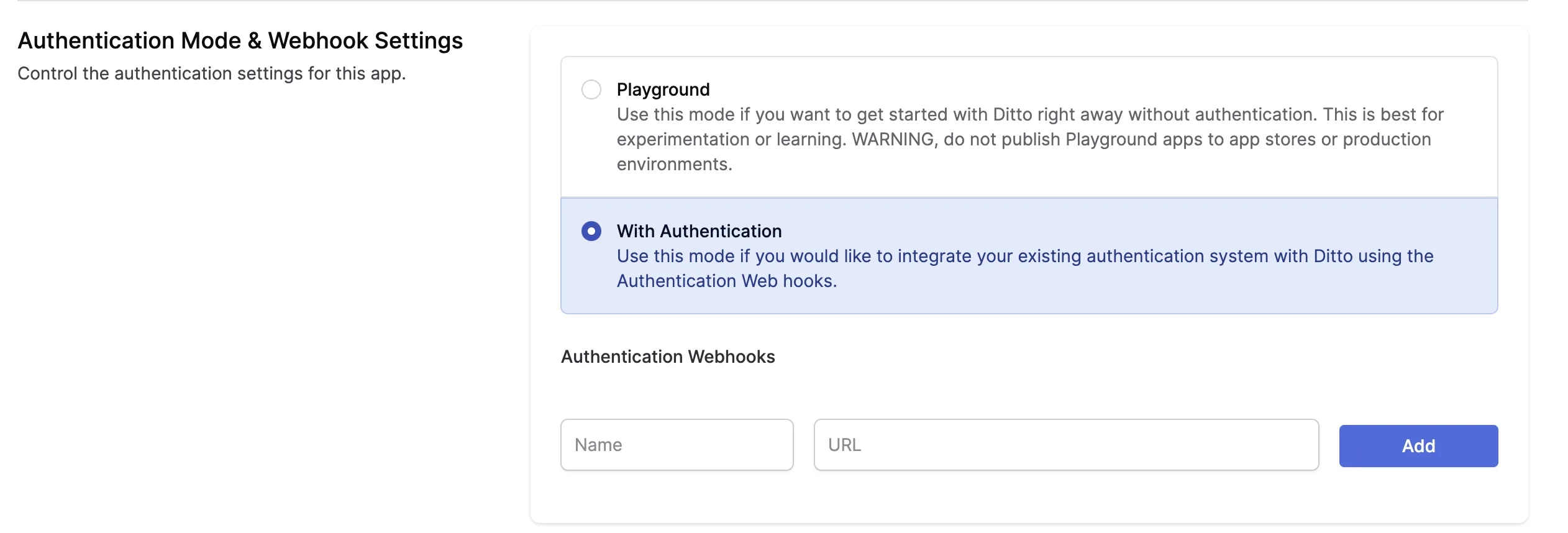
Below, a section called Authentication Webhooks will be editable. Once your Authentication Webhook Endpoint(s) is deployed and ready, you can register it in the portal. Add a Name and URL.
- Provide a unique Name to identify your authentication webhooks.
- The URL parameter is the fully qualified URL of the webhook that you deploy yourself. Please include https:// at the beginning of your URL.
You can use our example webhook to just get started. This webhook is a server deployed on a third-party server and is just for testing. This server will always authorize all clients with full read and write permissions.
You can use this URL to test your application. However, you should not use this URL in production. This Replit simply authenticates everyone for 7 days of offline usage.
Once configured, you should see a webhook that looks like this in your portal app settings:

Configure Auth0
If you don't have an Auth0 account yet...
...you can sign up for one here - it's free.
If you already have an Auth0 account...
Login at auth0.com and follow these steps:
- Configure the allowed callbacks and origins for your application. Make sure to add the callback URL for your application.
- Configure the allowed grant types for your application. For this tutorial, we will use the "Authorization Code" grant type.
- Create a new API in Auth0. This will represent the API that your application will access.
Create a new Auth0 application
In the menu on the left side of the Auth0 dashboard, click on Applications.
This will expand the Applications menu. Select the first item in that menu, which also has the name Applications.
You will now be on the Applications page. It lists all the applications that you have registered so that Auth0 can handle their login/logout processes.
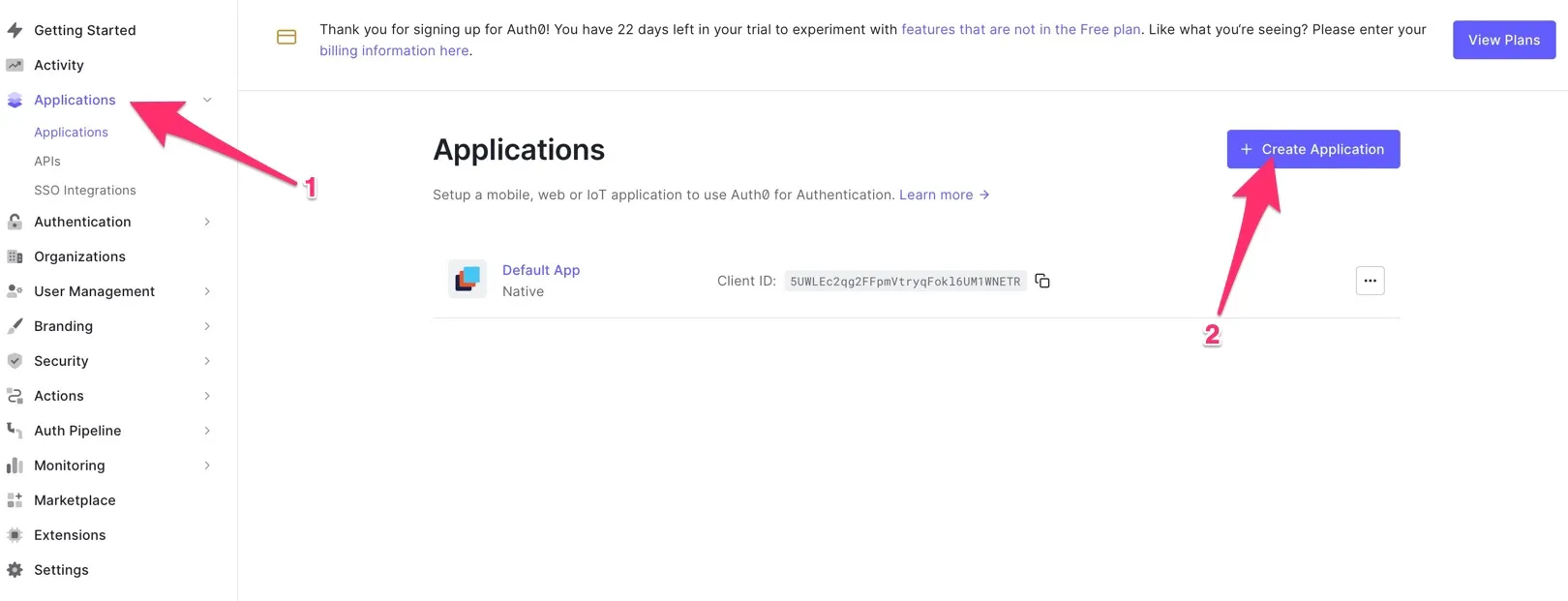
Click the Create application button near the top right of the page. This creates a new registration for your app.
You can follow the prompts and instructions on the Auth0 site for more details. From the Auth0 portal you will need to retrieve the following information for your Android app:
- Domain
- Client ID
You can store these as String resources in your app. On the Auth0 portal, you will need to build your callback URL and logout URL. Again, see the Auth0 website for details on how to do this.
References
Integrating Auth0 with Ditto
Now that you have configured Auth0 and Ditto, you can start integrating them into your application.
Assuming you have a login button in the HTML:
<button onClick={login}>Login</button>We attach a login function to the button.
import createAuth0Client from '@auth0/auth0-spa-js';
// OR for React
import { useAuth0 } from '@auth0/auth0-react';

// configure your auth0 client...

async function login () {
  await auth0.loginWithRedirect({
    redirect_uri: window.location.origin
  });
  startDitto()
}
We can then create a startDitto function that gets the access token and starts a new Ditto instance, and passes the token to your server route you created in the previous section.
The provider name given to the Ditto Client must match a provider name in the Portal (e.g., replit-auth).
import createAuth0Client from '@auth0/auth0-spa-js';
// OR for React
import { useAuth0 } from '@auth0/auth0-react';
import { init, Ditto } from "@dittolive/ditto"

// configure your auth0 client...

let ditto

(async () => {
  await init() // you need to call this at least once before using any of the Ditto API

  function startDitto () {
    let token = await auth0.getAccessTokenSilently();

    const authHandler = {
      authenticationRequired: async function(authenticator) {
        await authenticator.login(token, "replit-auth");
        console.log("Login request completed.");
      },
      authenticationExpiringSoon: function(authenticator, secondsRemaining) {
        console.log(`Auth token expiring in ${secondsRemaining} seconds`)
        await authenticator.login(token, "replit-auth");
        console.log("Login request completed.");
      }
    }

    const identity = {
      type: 'onlineWithAuthentication',
      appID: 'REPLACE_ME_WITH_YOUR_APP_ID',
      authHandler
    }

    ditto = new Ditto(identity, '/persistence/file/path')
    ditto.startSync()
  }

  async function login () {
    await auth0.loginWithRedirect({
      redirect_uri: window.location.origin
    });
    startDitto()
  }
})()
To demonstrate that this Ditto client has been authenticated, let's display the number of cars in the collection, and a button to add one item to it:
<div>
  <h1>Cars: {numberOfCars}</h1>
  <button onClick={addItem}>+1</button>
</div>
Once we start the ditto instance, we can create a live query and create a button that adds items to a collection:
let subscription = ditto.store.collection('cars').find("state == 'FOR_SALE'").subscribe()
let liveQuery = ditto.store.collection('cars').find("name == 'Toyota'").observeLocal((cars) => {
  numberOfCars = cars.length
})

function addItem () {
  ditto.store.collection('cars').upsert({
    "name": 'Toyota',
    "state": 'FOR_SALE'
  })
}
Log out
let loggedIn = false
if (auth0.isAuthenticated()) {
  loggedIn = true
}
if (loggedIn) {
// render the logout button
<button onClick={onLogoutClick}>Logout</button>
} else {
<button onClick={login}>Login</button>
}And then we can write the logout function and attach it to the button.
We also recommend calling ditto.auth.logout with a callback function that evicts any data from the local Ditto store.
function onLogoutClick() {
  ditto.auth.logout(() => {
    ditto.store.collection('cars').findAll().evict()
  })
  await auth0.logout({ returnTo: window.location.origin })
}