Xamarin Task App
Xamarin.iOS is currently supported on physical devices; however, the iOS simulator is not yet supported.
Xamarin. Android support is coming soon.
The following guide will show you how to build a task list application using Xamarin. This tutorial also shows you how to build an example user interface for iOS.
Follow the official Xamarin guide for Android for Android-specific code samples.
Overview
Setting Up
macOS
Before getting started, you will need the latest version of Xcode and Visual Studio 2022 for Mac.
Once the Visual Studio installer is complete, launch Visual Studio and open the Preferences dialog (Visual Studio menu -> Preferences..., or the ⌘, keyboard shortcut).
Navigate to the Build and Debug -> SDK Locations -> .NET Core section on the left. Under .NET Core Command Line browse to or enter the following in the Location: box:
/usr/local/share/dotnet/dotnetFinally, add the following lines to your AppName.csproj file:
<?xml version="1.0" encoding="utf-8"?>
<Project DefaultTargets="Build" ToolsVersion="4.0" xmlns="http://schemas.microsoft.com/developer/msbuild/2003">
    // 1.
    <PropertyGroup>
        <RuntimeIdentifier>osx</RuntimeIdentifier>
        <NuGetRuntimeIdentifier>osx</NuGetRuntimeIdentifier>
        <AutoGenerateBindingRedirects>true</AutoGenerateBindingRedirects>
    </PropertyGroup>
    ....
Windows
Xamarin.Android development can be done entirely on a Windows box, but a Mac with Xcode is required for some parts of Xamarin.iOS development. It is possible to Pair to Mac from Visual Studio on a Windows PC.
Creating the App
Once you've installed the latest version of Xcode and Visual Studio:
Open Visual Studio and click File > New Project under IOS select App and then Single View App. Make sure language is C#
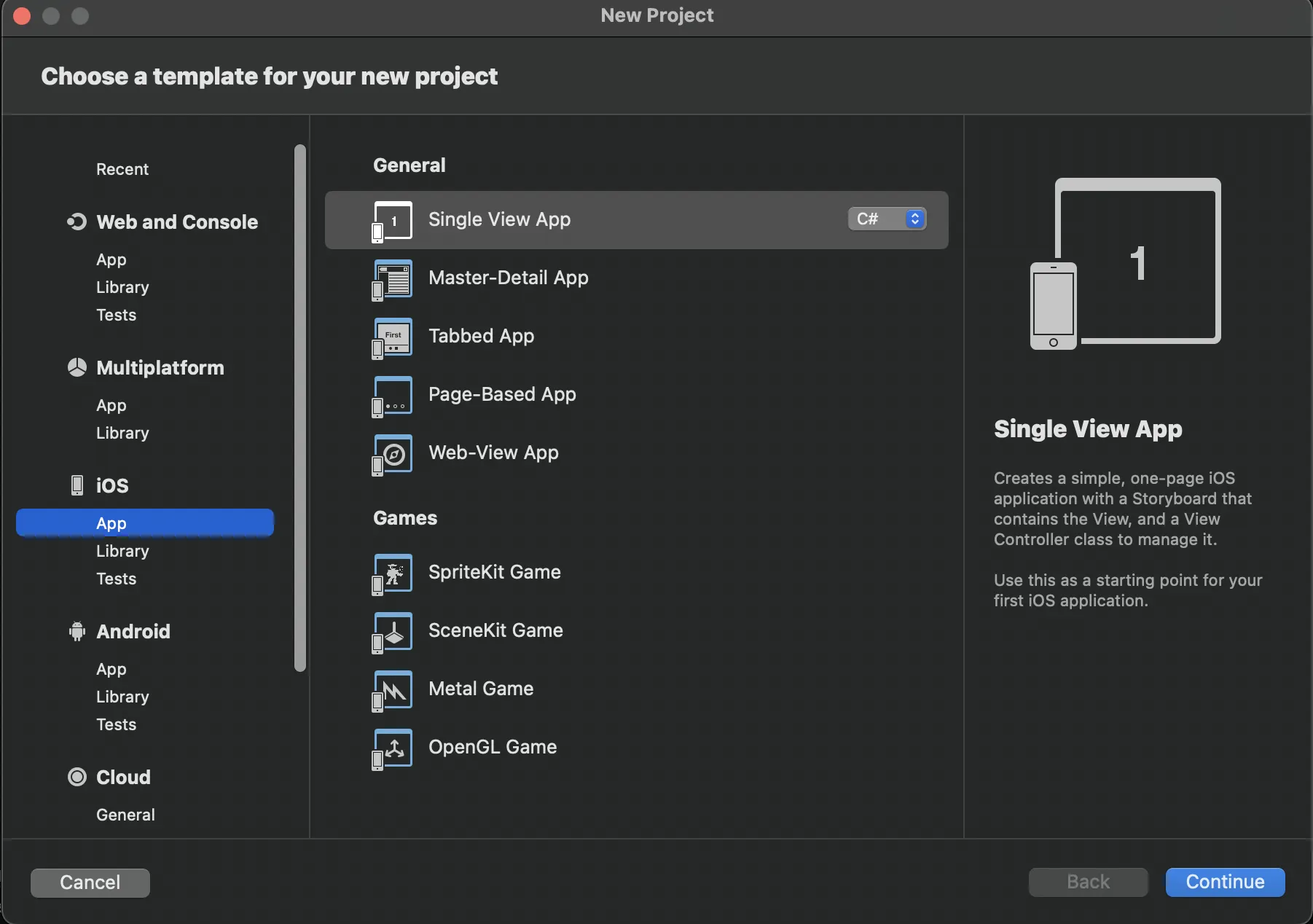
Fill out the information on the form similar to the screenshot below. These are recommended values however they are not crucial to complete this tutorial:
- App Name: "Tasks"
- Organization Identifier: "live.ditto". However, feel free to use your own value here.
- Target: iOS 12.0
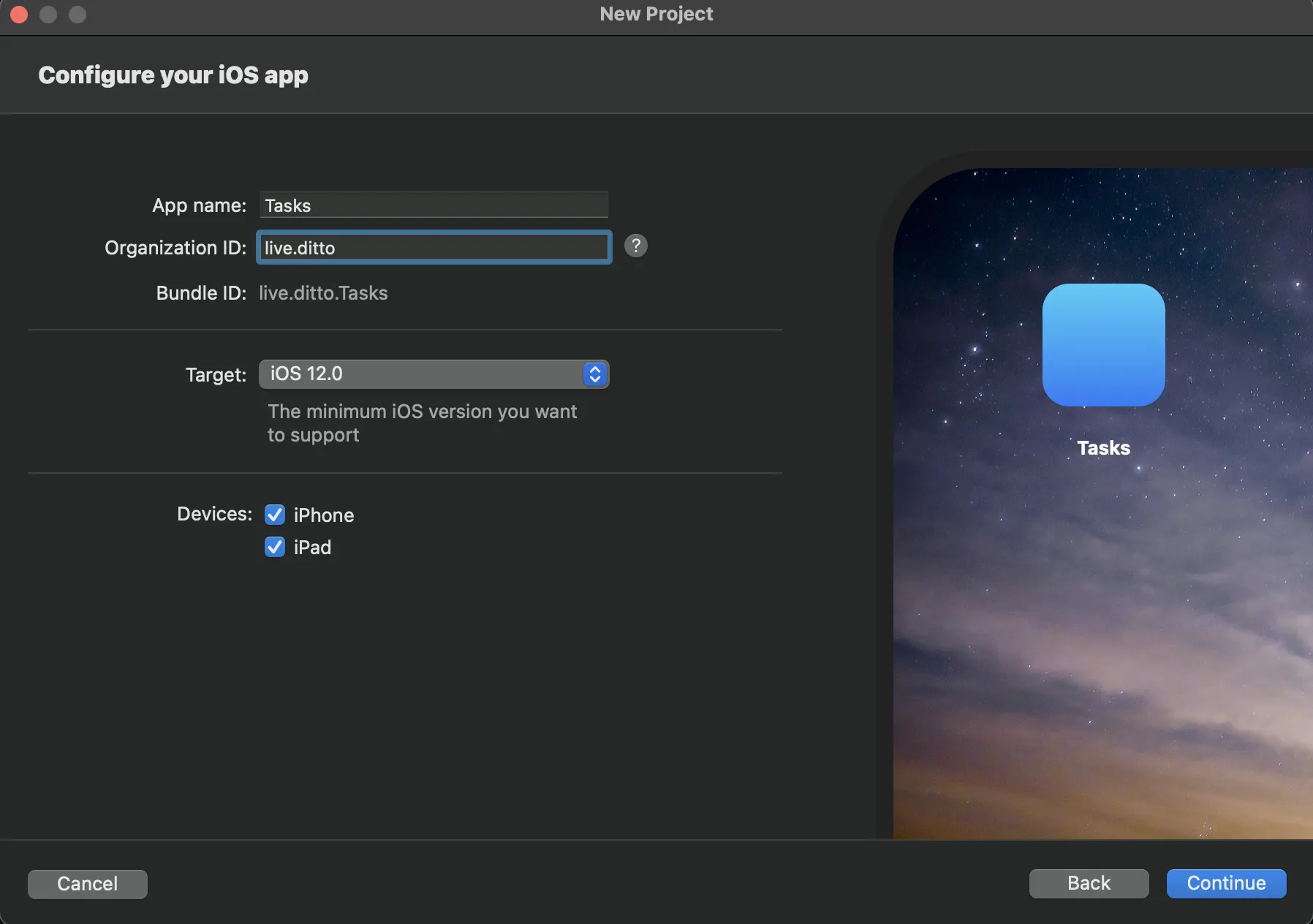
And finally click Continue and select a directory to create the application.
Adding Dependencies
Follow the instructions on the Installation page for C# to use Package Manager or .NET CLI.
Now open Tasks.csproj.
Configuring Ditto
Creating Your Ditto App
Before we start coding, we first need to create a new app in the portal. Apps created on the portal will automatically sync data between them and also to the Ditto Big Peer.
Each app created on the portal has a unique appID which can be seen on your app's settings page once the app has been created. This ID is used in subsequent sections to configure your Ditto instance.
Adding Permissions to the Info.plist
For Ditto to fully use all the network transports like Bluetooth Low Energy, Local Area Network, Apple Wireless Direct, the app will need to ask the user for permissions. These permission prompts need to be in the Info.plist file of your project.
Follow the instructions on the iOS Installation page.
Adding ditto to AppDelegate.cs
When Visual Studio generated your project, there should be a file called "AppDelegate.cs." We will need an instance of Ditto throughout this tutorial and the app's lifecycle.
First import Ditto with using DittoSDK.
Next, we'll need to hold a reference to our Ditto instance.
After the app has finished launching we will add a working directory. Currently, Xamarin.iOS apps need to provide a working directory inside the app's sandbox. Without this, the default directory used by the SDK won't be writable and an exception will be thrown.
Construct an instance of Ditto with an online playground identity using the APP ID and Playground Token of the app that you just created on the portal.
We are using an .OnlinePlayground setup, which should suffice for this tutorial.
However, you should never deploy this to a production environment.
We want to enable all peer to peer transport configurations.
We will call startSync().
using Foundation;
using UIKit;
using System;

//1
using DittoSDK;

namespace Tasks
{
    // The UIApplicationDelegate for the application. This class is responsible for launching the
    // User Interface of the application, as well as listening (and optionally responding) to application events from iOS.
    [Register ("AppDelegate")]
    public class AppDelegate : UIResponder, IUIApplicationDelegate {

        [Export("window")]
        public UIWindow Window { get; set; }

        //2
        internal Ditto ditto;

        [Export ("application:didFinishLaunchingWithOptions:")]
        public bool FinishedLaunching (UIApplication application, NSDictionary launchOptions)
        {

            //3
            NSFileManager fileManager = new NSFileManager();
            NSUrl url = fileManager.GetUrl(NSSearchPathDirectory.DocumentDirectory, NSSearchPathDomain.User, null, true, out NSError error);
            if (error != null)
            {
                Console.WriteLine($"Error creating Documents directory: {error.LocalizedDescription}");
            }
            url = url.Append("ditto", true);

            fileManager.CreateDirectory(url, true, null, out error);
            if (error != null)
            {
                Console.WriteLine($"Error creating ditto directory: {error.LocalizedDescription}");
            }

            string workingDir = url.Path;

            //4
            DittoIdentity identity = DittoIdentity.OnlinePlayground(appID: "REPLACE_ME", token: "REPLACE_ME"
, false, workingDir: workingDir);

            ditto = new Ditto(identity, workingDir);

            //5
            var transportConfig = new DittoTransportConfig();
            transportConfig.EnableAllPeerToPeer();
            ditto.TransportConfig = transportConfig;

            //6
            ditto.StartSync();

            return true;
        }

        // UISceneSession Lifecycle

        [Export ("application:configurationForConnectingSceneSession:options:")]
        public UISceneConfiguration GetConfiguration (UIApplication application, UISceneSession connectingSceneSession, UISceneConnectionOptions options)
        {
            // Called when a new scene session is being created.
            // Use this method to select a configuration to create the new scene with.
            return UISceneConfiguration.Create ("Default Configuration", connectingSceneSession.Role);
        }

        [Export ("application:didDiscardSceneSessions:")]
        public void DidDiscardSceneSessions (UIApplication application, NSSet<UISceneSession> sceneSessions)
        {
            // Called when the user discards a scene session.
            // If any sessions were discarded while the application was not running, this will be called shortly after `FinishedLaunching`.
            // Use this method to release any resources that were specific to the discarded scenes, as they will not return.
        }
    }
}
Creating a Task Class
Ditto is a document database, which represents all of its rows in the database a JSON-like structure. In this tutorial, we will define each task like so:
{
  "_id": "123abc",
  "body": "Get Milk",
  "isCompleted": true
}
These Task documents will all be in the "tasks" collection. We will be referencing this collection throughout this tutorial with:
var tasksCollection = ditto.Store["tasks"]Create a new cs file called "Task.cs" in your project:
Import Ditto with using DittoSDK.
Add the matching variables public string _id;, public string body;, and public bool isCompleted; to the class.
We will use this to match the document values to to the class.
Add a constructor to Task that takes in a DittoDocument. Parse out the document's keys with Ditto's type safe value accessors. This will safely map all the document's values to the struct's variables that we created in step 1.
// 1
using DittoSDK;

namespace Tasks
{
    public class Task
    {
        // 2
        public string _id;
        public string body;
        public bool isCompleted;

        // 3
        public Task(DittoDocument document)
        {
            this._id = document["_id"].StringValue;
            this.body = document["body"].StringValue;
            this.isCompleted = document["isCompleted"].BooleanValue;
        }
    }
}
Once we set up our user interface, you'll notice that reading these values becomes a bit easier with this added class.
Creating the User Interface
When we generated the project, Visual Studio created a default Main.StoryBoard file.
Right-click Main.storyboard and select Open With > Xcode Interface Builder.
This will open up the Xcode application and allow you to design the user interface inside of Xcode using storyboards.
When Xcode opens select the Main file and open it, and then delete the default ViewController.
Open the UI components Library and type "Navigation Controller" into the search. Drag a new Navigation Controller onto the screen. This will create a Navigation Controller and a Root View Controller with a Table View. Select the Navigation Controller and make sure the box Is Initital View Controller is selected.
Open the UI components Library again and type in "Bar Button Item". Drag the button to the top right of the "Root View Controller" screen. Then, select the button, go to the Inspector panel and select the Attributes inspector. Change System Item to Add. This will make the bar button item we just added into a ''+'' Sign.
Select the Root View Controller top bar. Then go to the Inspectors panel and select the identity inspector. We will create a custom class for this View Controller. In the Class section type "TasksTableViewController".
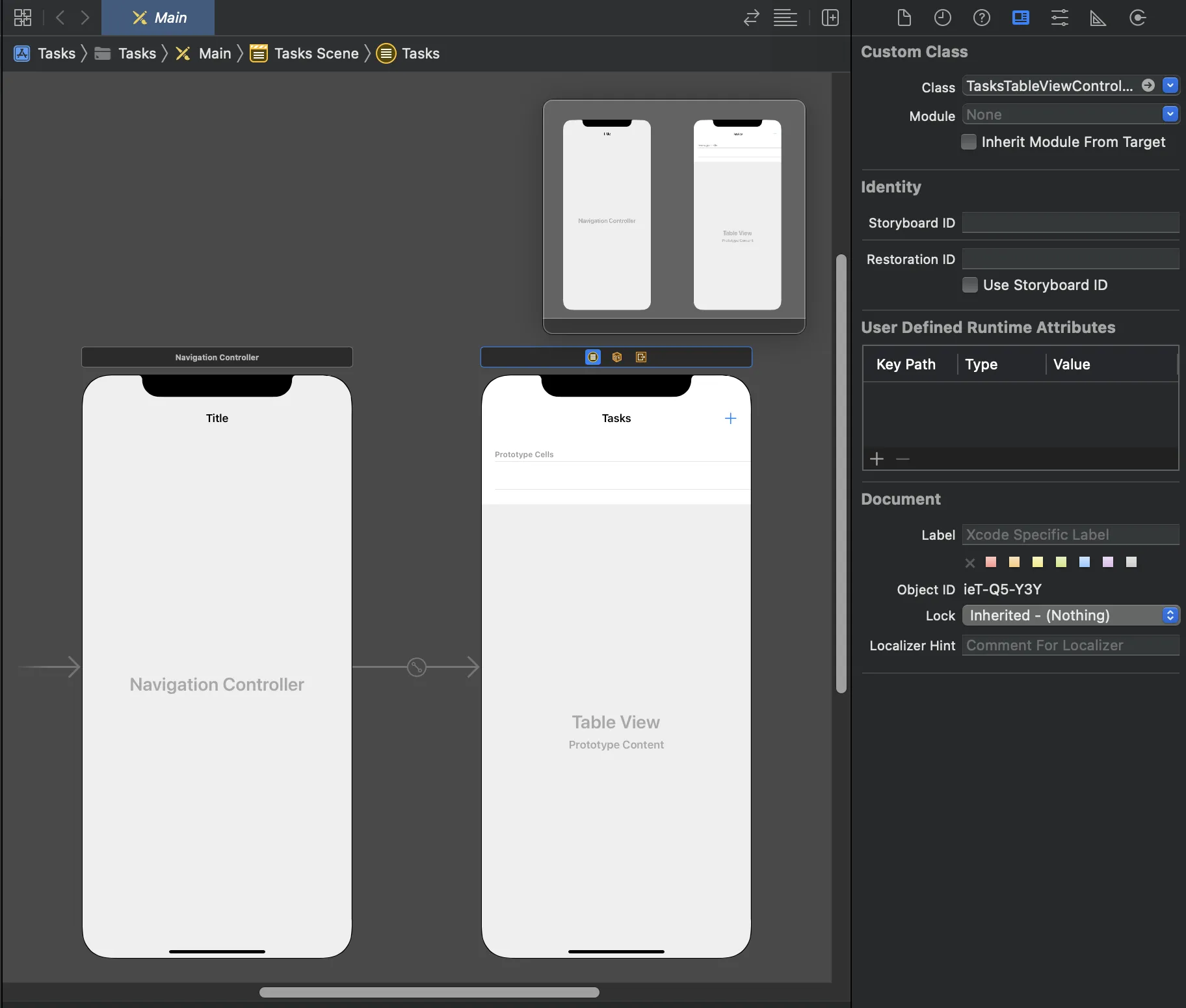
Next, select the Prototype cells and give it an identifier of "taskCell".
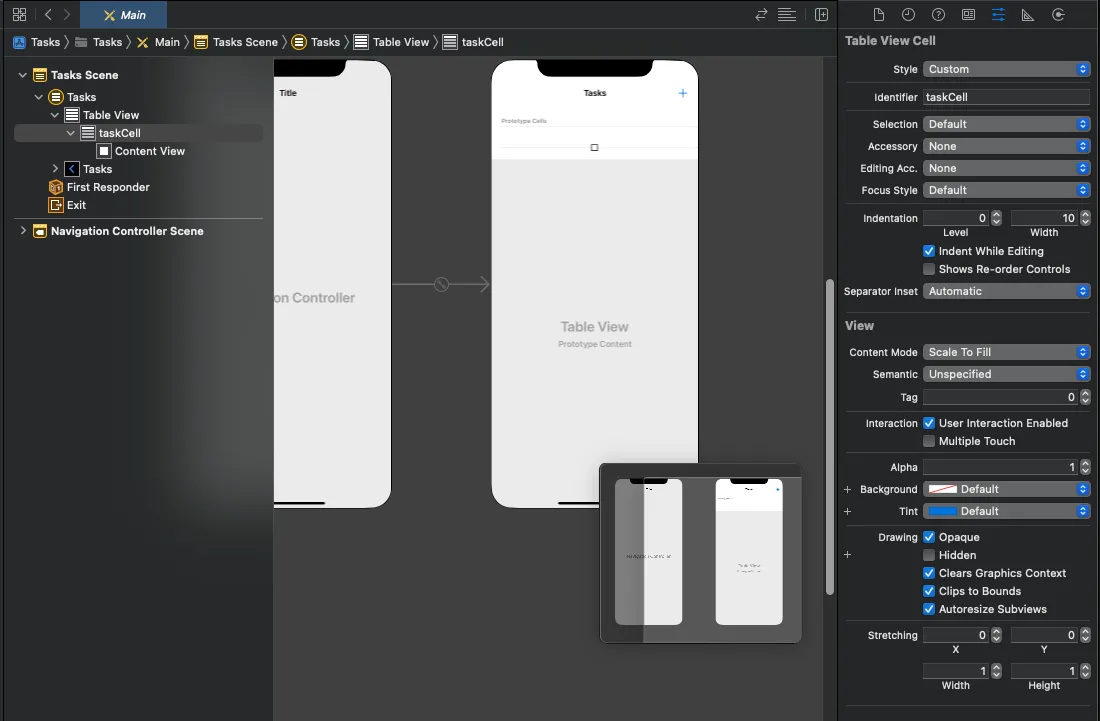
Save that file in Xcode, then open the poject up in Visual Studio again. At this point, Visual Studio should have auto generated two files for you. A TasksTableViewController.cs file and a TasksTableViewController.designer.cs file. These are the class files that were created from the TasksTableViewController we created in Xcode.
Open the project up in Xcode again and you should now see two new files added to the project directory. A TasksTableViewController.h file and a TasksTableViewController.m file.
Open the Main.storyboard file. While pressing the control button on your keyboard select the button and drag under the @interface SceneDelegate : UIResponder { } code inside the TasksTableViewController.h file. Fill the information as follows:
- Connection: Action
- Name: didClickAddTask
- Type: UIBarButtonItem
Save the file.
Showing the List of Tasks
In the last part of the tutorial we setup the user interface using the Xcode interfaace builder and created a custom class TasksTableViewController.
Setting Up TasksTableViewController Class
First, we need to add some variables that will be created on viewDidLoad of the TasksTableViewController so adjust the class to match this code:
using System;
using UIKit;
// Remember to import Ditto
using DittoSDK;
using System.Collections.Generic;

namespace Tasks
{
    public partial class TasksTableViewController : UITableViewController
    {
        // These hold references to Ditto for easy access
        private DittoLiveQuery liveQuery;
        private DittoSubscription subscription;
        private Ditto ditto
        {
            get
            {
                var appDelegate = (AppDelegate)UIApplication.SharedApplication.Delegate;
                return appDelegate.ditto;
            }
        }
        private DittoCollection collection
        {
            get
            {
                return this.ditto.Store.Collection("tasks");
            }
        }

        // List that will contain all the tasks
        List<Task> tasks = new List<Task>();

        // data source for the TasksTableViewController
        private TasksTableSource tasksTableSource = new TasksTableSource();

        public TasksTableViewController(IntPtr handle) : base(handle)
        {
        }

        public override void ViewWillAppear(bool animated)
        {
            base.ViewWillAppear(animated);

            TableView.Source = tasksTableSource;
        }

        public override void ViewDidLoad()
        {
            base.ViewDidLoad();
            setupTaskList();
        }

        // Sets up Live Query for syncing
        public void setupTaskList()
        {
            subscription = ditto.Store["tasks"].Find("!isDeleted").Subscribe()
            liveQuery = ditto.Store["tasks"].Find("!isDeleted").ObserveLocal((docs, _event) =>
            {
                tasks = docs.ConvertAll(d => new Task(d));
                tasksTableSource.updateTasks(tasks);

                InvokeOnMainThread(() =>
                {
                    TableView.ReloadData();
                });

            });

            ditto.Store["tasks"].Find("isDeleted == true").Evict();
        }

        // Creates a new task
        partial void didClickAddTask(UIBarButtonItem sender)
        {
            // Create an alert
            var alertControl = UIAlertController.Create(
                title: "Add New Task",
                message: null,
                preferredStyle: UIAlertControllerStyle.Alert);

            // Add a text field to the alert for the new task text
            alertControl.AddTextField(configurationHandler: (UITextField obj) => obj.Placeholder = "Enter Task");

            alertControl.AddAction(UIAlertAction.Create(title: "Cancel", style: UIAlertActionStyle.Cancel, handler: null));

            // Add a "OK" button to the alert.
            alertControl.AddAction(UIAlertAction.Create(title: "OK", style: UIAlertActionStyle.Default, alarm => addTask(alertControl.TextFields[0].Text)));

            // Present the alert to the user
            PresentViewController(alertControl, animated: true, null);
        }

        public void addTask(string text)
        {
            var dict = new Dictionary<string, object>
            {
                {"body", text},
                {"isCompleted", false}
            };

            var docId = this.collection.Upsert(dict);
        }
    }
}Let's break down what this code does. First, we create the variables needed and then initialize them in ViewWillAppear().
// These hold references to Ditto for easy access
private DittoLiveQuery liveQuery;
private Ditto ditto
{
    get
    {
        var appDelegate = (AppDelegate)UIApplication.SharedApplication.Delegate;
        return appDelegate.ditto;
    }
}
private DittoCollection collection
{
    get
    {
        return this.ditto.Store.Collection("tasks");
    }
}

// List that will contain all the tasks
List<Task> tasks = new List<Task>();

// data source for the TasksTableViewController
private TasksTableSource tasksTableSource = new TasksTableSource();

public TasksTableViewController(IntPtr handle) : base(handle)
{
}

public override void ViewWillAppear(bool animated)
{
    base.ViewWillAppear(animated);

    TableView.Source = tasksTableSource;
}After setting up the variables and starting Ditto, we then use Ditto's key API to observe changes to the database by creating a live-query in the setupTaskList() function. This allows us to set the initial state of the UITableView after the query is immediately run and then subsequently get callbacks for any new data changes that occur locally or that were synced from other devices:
public override void ViewDidLoad()
{
    base.ViewDidLoad();
    setupTaskList();
}

// Sets up Live Query for syncing
public void setupTaskList()
{
    liveQuery = ditto.Store["tasks"].Find("!isDeleted").ObserveLocal((docs, _event) =>
    {
        tasks = docs.ConvertAll(d => new Task(d));

        // We will implement this later
        tasksTableSource.updateTasks(tasks);

        InvokeOnMainThread(() =>
        {
            TableView.ReloadData();
        });

    });
}
After setting up the variables and starting Ditto, we then use Ditto's key API to observe changes to the database by creating a live-query in the setupTaskList() function. This allows us to set the initial state of the UITableView after the query is immediately run and then subsequently get callbacks for any new data changes that occur locally or that were synced from other devices:
public override void ViewDidLoad()
{
    base.ViewDidLoad();
    setupTaskList();
}

// Sets up Live Query for syncing
public void setupTaskList()
{
    liveQuery = ditto.Store["tasks"].Find("!isDeleted").ObserveLocal((docs, _event) =>
    {
        tasks = docs.ConvertAll(d => new Task(d));

        // We will implement this later
        tasksTableSource.updateTasks(tasks);

        InvokeOnMainThread(() =>
        {
            TableView.ReloadData();
        });

    });
}
This is a best-practice when using Ditto, since it allows your UI to simply react to data changes which can come at any time given the ad-hoc nature of how Ditto synchronizes with nearby devices. With this in place, we can now add user actions and configure the UITableview to display the tasks.
Look in the TasksTableViewController.design.cs file and you should see [Action ("didClickAddTask:")] partial void didClickAddTask (UIKit.UIBarButtonItem sender);. This is the button we created earlier in Xcode. Now we need to add an action to it.
// Triggered when add button is pressed
partial void didClickAddTask(UIBarButtonItem sender)
{
    // Create an alert
    var alertControl = UIAlertController.Create(
        title: "Add New Task",
        message: null,
        preferredStyle: UIAlertControllerStyle.Alert);

    // Add a text field to the alert for the new task text
    alertControl.AddTextField(configurationHandler: (UITextField obj) => obj.Placeholder = "Enter Task");

    alertControl.AddAction(UIAlertAction.Create(title: "Cancel", style: UIAlertActionStyle.Cancel, handler: null));

    // Add an "OK" button to the alert.
    alertControl.AddAction(UIAlertAction.Create(title: "OK", style: UIAlertActionStyle.Default, alarm => addTask(alertControl.TextFields[0].Text)));

    // Present the alert to the user
    PresentViewController(alertControl, animated: true, null);
}

public void addTask(string text)
{

    var dict = new Dictionary<string, object>
    {
        {"body", text},
        {"isCompleted", false},
        {"isDeleted", false}
    };

    // Adds the new task to the ditto collection
    var docId = this.collection.Upsert(dict);
}When we Upsert the new task into the ditto collection then the live query that is observing the collection will be triggered.
Creating the TaskTableSource Class
Open File->New File-> Empty Class (C#) and name it "TaskTableSource".
Import UIKit with using UIKit.
This class will implement UITableViewSource.
using System;
using Foundation;
using UIKit;

namespace Tasks
{
    public class TaskTableSource : UITableViewSource
    {
        public TaskTableSource()
        {
        }

        public override UITableViewCell GetCell(UITableView tableView, NSIndexPath indexPath)
        {
            throw new NotImplementedException();
        }

        public override nint RowsInSection(UITableView tableview, nint section)
        {
            throw new NotImplementedException();
        }
    }
}Now we need to get our instance of Ditto and setup the other class variables we will be using.
public class TaskTableSource : UITableViewSource
{
    Task[] tasks;
    NSString cellIdentifier = new NSString("taskCell");

    private DittoCollection collection
    {
        get
        {
            return this.ditto.Store.Collection("tasks");
        }
    }

    private Ditto ditto
    {
        get
        {
            var appDelegate = (AppDelegate)UIApplication.SharedApplication.Delegate;
            return appDelegate.ditto;
        }
    }
    public TaskTableSource()
    {
    }

    public override UITableViewCell GetCell(UITableView tableView, NSIndexPath indexPath)
    {
        throw new NotImplementedException();
    }

    public override nint RowsInSection(UITableView tableview, nint section)
    {
        throw new NotImplementedException();
    }
}Implement is the UITableViewSource inherited method RowsInSection by checking whether the tasks array is empty. If its not empty then return the number of tasks in the tasks array.
public override nint RowsInSection(UITableView tableview, nint section)
{
    if (this.tasks == null)
    {
        return 0;
    }
    return tasks.Length;
}Implement is the UITableViewSource inherited method GetCell by doing the following:
- Get the cell using the cell identifier.
- Within our cell we want a text label and a cell accessory that will be used to check whether the task has been completed or not. We will assign the name of the task to the TextLabel.Text.
- Setup a tap gesture that will update whether the task has been completed or not. When tapped, we will update the task document inside the Ditto Collection and update the isCompleted key.
public override UITableViewCell GetCell(UITableView tableView, NSIndexPath indexPath)
{
    // 1
    UITableViewCell cell = tableView.DequeueReusableCell(cellIdentifier);
    if (cell == null)
    {
        cell = new UITableViewCell(UITableViewCellStyle.Default, cellIdentifier);
    }

    Task task = tasks[indexPath.Row];

    // 2
    cell.TextLabel.Text = task.body;
    var taskComplete = task.isCompleted;

    //Checks whether the tasks has been completed or not
    if (taskComplete)
    {
        cell.Accessory = UITableViewCellAccessory.Checkmark;
    }
    else
    {
        cell.Accessory = UITableViewCellAccessory.None;
    }

    // 3
    var tapGesture = new UITapGestureRecognizer();
    tapGesture.AddTarget(() =>
    {
        if (taskComplete)
        {
            collection.FindById(task._id).Update(mutableDoc =>
                mutableDoc["isCompleted"].Set(false)
            );
        }
        else
        {
            collection.FindById(task._id).Update(mutableDoc =>
                mutableDoc["isCompleted"].Set(true)
            );
        }
    });
    cell.AddGestureRecognizer(tapGesture);

    return cell;
}The next thing to add to our TasksTableSource is the updateTasks method we called earlier.
This method will take a list of Tasks and then assign it to our Tasks array that is used for displaying the tasks.
public void updateTasks(List<Task> tasks)
{
    this.tasks = tasks.ToArray();
}The last thing that we need to do is to add a way to delete any tasks that we no longer want.
To do so, we will override the CommitEditingStyle method. This method has a default delete value and so we just need to tell the app what to do when the delete is called.
In this case, we want to remove the task document from the Ditto Collection. When we remove that documents the live query we setup earlier will be called and will refresh the UI with the removed task.
public override void CommitEditingStyle(UITableView tableView, UITableViewCellEditingStyle editingStyle, Foundation.NSIndexPath indexPath)
{
    switch (editingStyle)
    {
        case UITableViewCellEditingStyle.Delete:

            var task = tasks[indexPath.Row];
            collection.FindById(task._id).Update((mutableDoc) => {
                if (mutableDoc == null) return;
                mutableDoc["isDeleted"].Set(true);
            });

            break;
        case UITableViewCellEditingStyle.None:
            Console.WriteLine("CommitEditingStyle:None called");
            break;
    }
}
App Overview
Our application is complete! Our TasksTableSource.cs file should look like the following:
using System;
using System.Collections.Generic;
using Foundation;
using UIKit;
using DittoSDK;

namespace Tasks
{
    public class TasksTableSource : UITableViewSource
    {
        Task[] tasks;
        NSString cellIdentifier = new NSString("taskCell");

        private DittoCollection collection
        {
            get
            {
                return this.ditto.Store.Collection("tasks");
            }
        }

        private Ditto ditto
        {
            get
            {
                var appDelegate = (AppDelegate)UIApplication.SharedApplication.Delegate;
                return appDelegate.ditto;
            }
        }

        public TasksTableSource(Task[] taskList)
        {
            this.tasks = taskList;
        }

        public TasksTableSource()
        {
        }

        public override UITableViewCell GetCell(UITableView tableView, NSIndexPath indexPath)
        {
            UITableViewCell cell = tableView.DequeueReusableCell(cellIdentifier);
            if (cell == null)
            {
                cell = new UITableViewCell(UITableViewCellStyle.Default, cellIdentifier);
            }

            Task task = tasks[indexPath.Row];

            cell.TextLabel.Text = task.body;
            var taskComplete = task.isCompleted;
            if (taskComplete)
            {
                cell.Accessory = UITableViewCellAccessory.Checkmark;
            }
            else
            {
                cell.Accessory = UITableViewCellAccessory.None;

            }

            var tapGesture = new UITapGestureRecognizer();
            tapGesture.AddTarget(() =>
            {
                if (taskComplete)
                {
                    collection.FindById(task._id).Update(mutableDoc =>
                        mutableDoc["isCompleted"].Set(false)
                    );
                }
                else
                {
                    collection.FindById(task._id).Update(mutableDoc =>
                        mutableDoc["isCompleted"].Set(true)
                    );
                }
            });
            cell.AddGestureRecognizer(tapGesture);

            return cell;

        }

        public override nint RowsInSection(UITableView tableview, nint section)
        {
            if (this.tasks == null)
            {
                return 0;
            }
            return tasks.Length;
        }

        public void updateTasks(List<Task> tasks)
        {
            this.tasks = tasks.ToArray();
        }

        public override void CommitEditingStyle(UITableView tableView, UITableViewCellEditingStyle editingStyle, Foundation.NSIndexPath indexPath)
        {
            switch (editingStyle)
            {
                case UITableViewCellEditingStyle.Delete:

                    var task = tasks[indexPath.Row];
                    collection.FindById(task._id).Update((mutableDoc) => {
                        if (mutableDoc == null) return;
                        mutableDoc["isDeleted"].Set(true);
                    });

                    break;
                case UITableViewCellEditingStyle.None:
                    Console.WriteLine("CommitEditingStyle:None called");
                    break;
            }
        }
    }
}
Congratulations you are now complete with the Ditto Xamarin.iOS task app!