DittoSwiftTools
DittoSwiftTools are diagnostic tools for Ditto. You can view connected peers, export debug logs, browse collections (documents), and monitor Ditto's disk usage.
Requirements
- iOS 15.0+
- Swift 5.0+
Installation
The recommended approach to using DittoSwiftTools in your project is using the Swift Package Manager.
With your project open in Xcode go to File -> Add Packages, then search using "github.com/getditto/DittoSwiftTools" to find the DittoSwiftTools package.
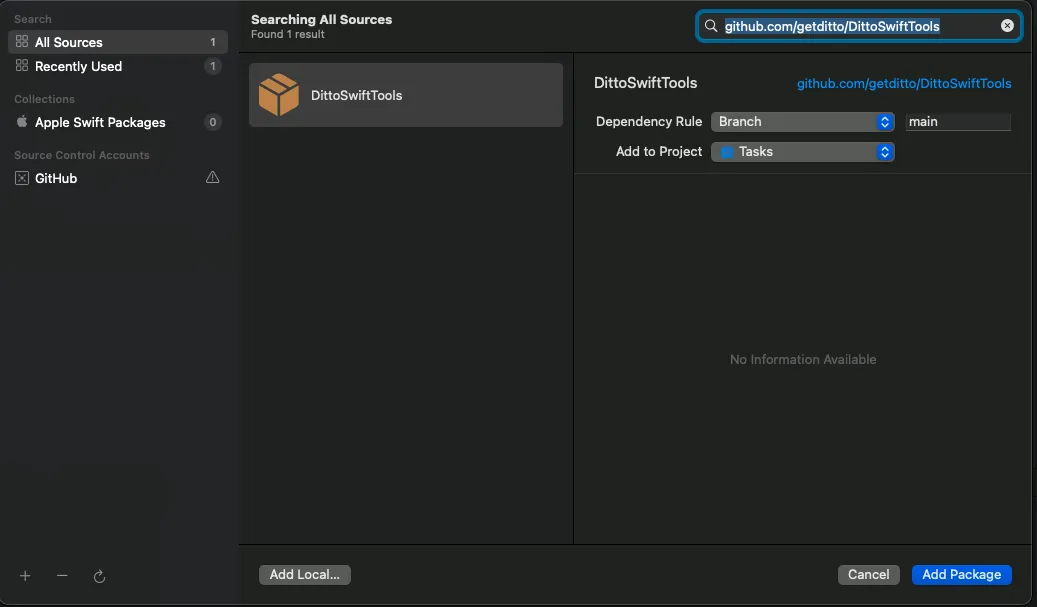
Select "Add Package"
Select which DittoSwiftTools products you would like, then select "Add Package"
If you are looking for compatibility with Ditto v4, please target the v4 branch in the Swift Package Manager.
Usage
There are four targets in this package: Presence Viewer, Data Browser, Export Logs, Disk Usage.
Presence Viewer
The Presence Viewer displays a mesh graph that allows you to see all connected peers within the mesh and the transport that each peer is using to make a connection.
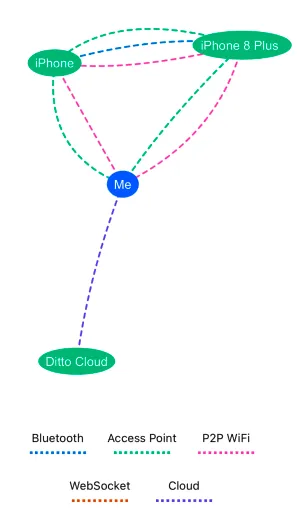
First, make sure the DittoPresenceViewer was added to your Target. Then, use import DittoPresenceViewer to import the PresenceViewer.
You can use the Presence Viewer in SiwftUI or UIKit.
SwiftUI
Use PresenceView(ditto: Ditto) and pass in your Ditto instance to display the mesh graph.
import DittoPresenceViewer

struct PresenceViewer: View{

    var body: some View {
        PresenceView(ditto: DittoManager.shared.ditto)
    }
}
UIKit
Call present, pass the following as a parameter, and then set animated to true:
DittoPresenceView(ditto:DittoManager.shared.ditto).viewController
func tableView(_ tableView: UITableView, didSelectRowAt indexPath: IndexPath) {
    present(DittoPresenceView(ditto: DittoManager.shared.ditto).viewController, animated: true) {
        if let selected = tableView.indexPathForSelectedRow {
            tableView.deselectRow(at: selected, animated: true)
        }
    }
}Data Browser
The Ditto Data Browser allows you to view all your documents within each collection, including each document's fields. With the Data Browser, you can observe any changes that are made to your collections and documents in realtime.
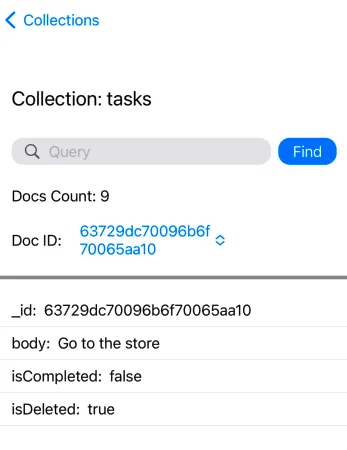
Standalone App
If you are using the Data Browser as a standalone app, there is a button, Start Subscriptions, you must press in order to start syncing data.
If you are embedding the Data Browser into another application then you do not need to press Start Subscriptions as you should already have your subscriptions running.
First, make sure the "DittoDataBrowser" was added to your Target. Then, use import DittoDataBrowser to import the Data Browser.
SwiftUI
Use DataBrowser(ditto: Ditto) and pass in your Ditto instance to display the Data Browser.
import DittoDataBrowser

struct DataBrowserView: View {
    var body: some View {
       DataBrowser(ditto: DittoManager.shared.ditto)
    }
}
UIKit
Pass DataBrowser(ditto: Ditto) to a UIHostingController which will return a view controller that you can use to present.
let vc = UIHostingController(rootView: DataBrowser(ditto: DittoManager.shared.ditto))

present(vc, animated: true)Export Logs
Export Logs allows you to export a file of the logs from your app.
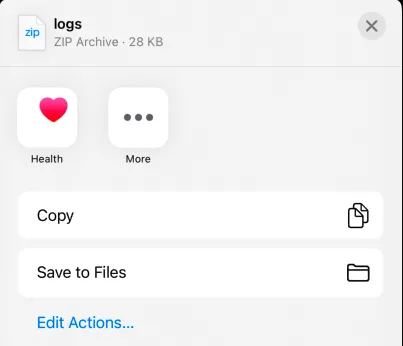
First, make sure the "DittoExportLogs" was added to your Target. Then, use import DittoExportLogs to import the export logs.
SwiftUI
Use ExportLogs() to export the logs. It is recommended to call ExportLogs from within a sheet.
.sheet(isPresented: $exportLogs) {
    ExportLogs()
}
UIKit
Pass ExportLogs() to a UIHostingController which will return a view controller that you can use to present.
let vc = UIHostingController(rootView: ExportLogs())

present(vc, animated: true)Disk Usage
Disk Usage allows you to see Ditto's file space usage.
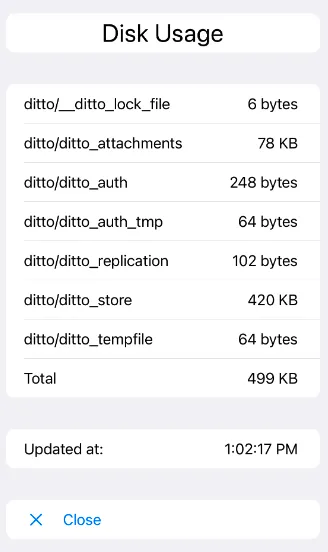
First, make sure the "DittoDiskUsage" was added to your Target. Then, use import DittoDiskUsage to import the Disk Usage.
First, make sure the "DittoDiskUsage" was added to your Target. Then, use import DittoDiskUsage to import the Disk Usage.
SwiftUI
Use DittoDiskUsageView(ditto: Ditto) and pass in your Ditto instance.
import DittoDiskUsage

struct DiskUsageViewer: View {
    var body: some View {
        DittoDiskUsageView(ditto: DittoManager.shared.ditto)
    }
}
UIKit
Pass DittoDiskUsageView(ditto: Ditto) to a UIHostingController which will return a view controller that you can use to present.
let vc = UIHostingController(rootView: DittoDiskUsageView(ditto: DittoManager.shared.ditto))

present(vc, animated: true)