Device Observability and Ditto Logs
Once the Ditto SDK has been embedded into an application on a device it is essential to be able to gather and store peer-to-peer sync and network details as well as the Ditto logs from that device. These insights from the device are stored in a Ditto system collection called smallPeerInfo and can be viewed from the Portal Device Dashboard (see Using the Device Dashboard.)
Enabling Small Peer Info
In Ditto 4.8.0 and onwards, Small Peer info is enabled by default.
In earlier versions of the Ditto SDK, the smallPeerInfo feature needs to be manually enabled to collect data, see Using the Device Dashboard.
Device Dashboard
The Device Dashboard will automatically gather and store peer-to-peer sync and network details, including:
- Mesh network connection status
- Timestamp when last seen by the Big Peer cloud deployment
- Names and unique identifiers
- Operating System (OS)
- Address peer key
- Latest device logs
- Custom user metadata
In addition to automatically gathering these details you can also perform a remote request to send the Ditto logs from a device to the Device Dashboard. If granted access, the Ditto Support Team can also use the device dashboard to request these logs in order to support and diagnose any issues a device may be experiencing.
Custom User Metadata
Common details to add to the metadata property are:
- Location of the Device
- App Version
- Device Role
Or any other relevant information pertaining to the device.
Setting the Device Name
Within Ditto, you can set the device name for each device using the deviceName property on the ditto namespace. Using a unique identifier for the device name that is know to the user of the device can help both your internal team and the Ditto Support Team to search the device on the Device Dashboard.
Customize the Device Dashboard
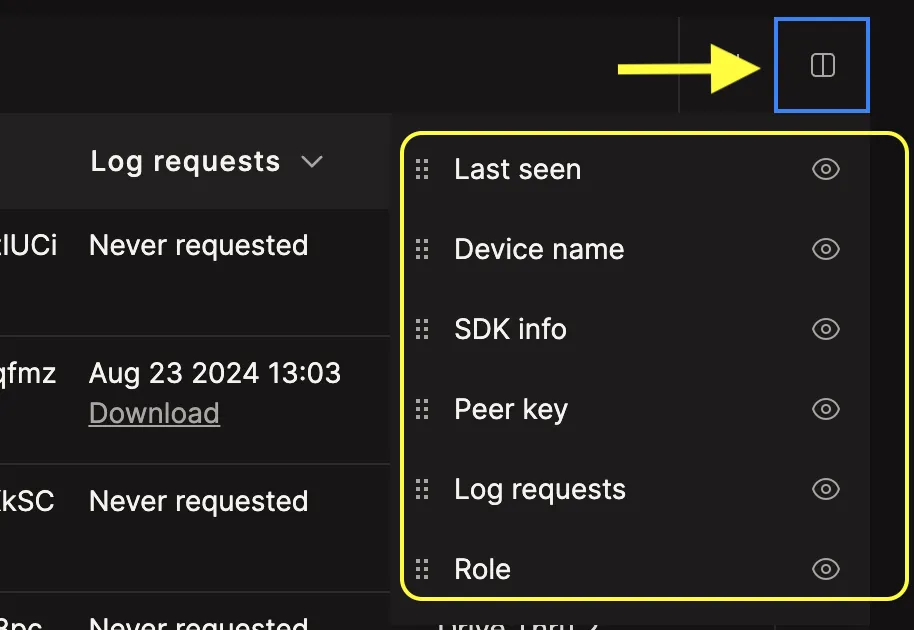
The Device Dashboard provides a quick overview of device-specific metadata. You can tailor your display to feature various data columns and utilize the search bar to filter the information
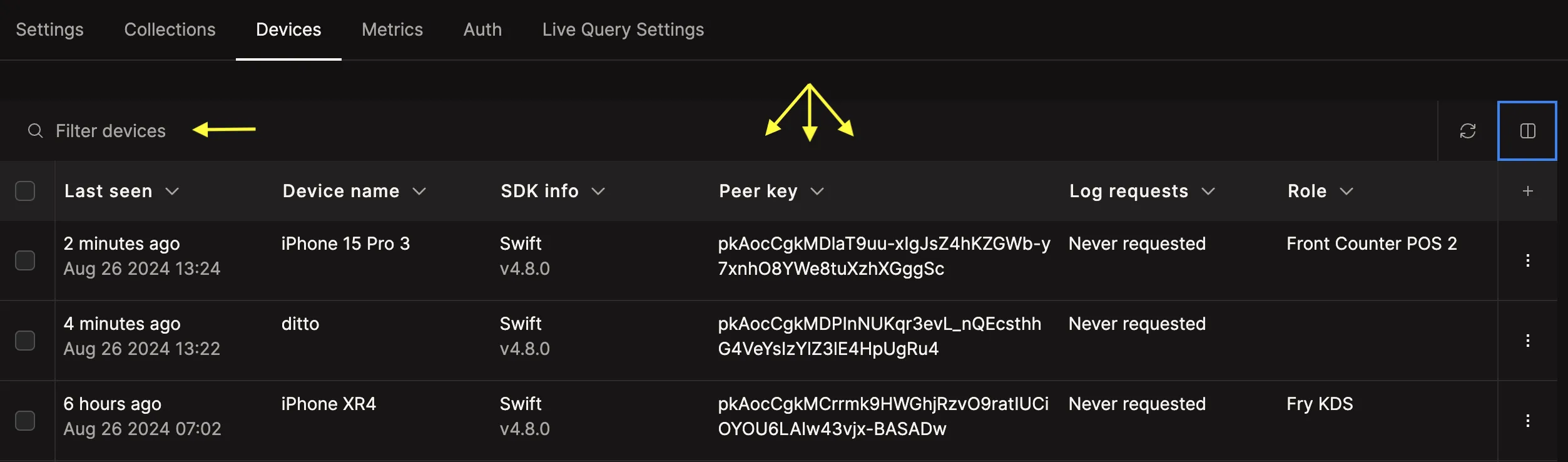
Use the + button at the top right to be able to add new data columns. Each new data column must correlate with a value in the small peer info metadata.
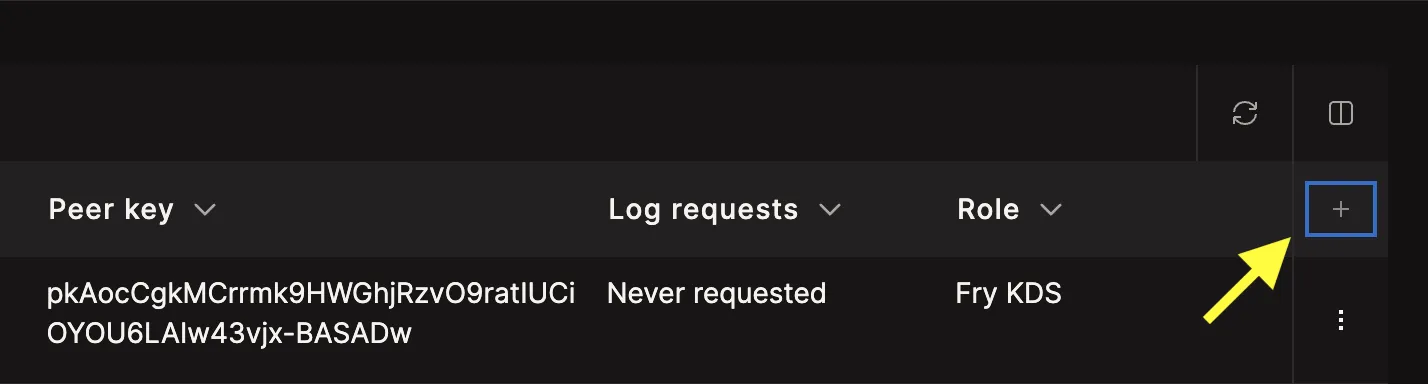
One you have added a new column that data will appear for everyone in your organization with access to the Device Dashboard. These columns can be toggled on/off.